IREX
EN

AudioTrack

AudioTrack detects gunshots, screaming, glass breaking, and loud noises using the camera microphone.

Meet AudioTrack

Camera and audio requirements

The module can be enabled on any camera that has a microphone; however, it is not recommended in noisy outdoor locations such as underground stations, railway terminals, etc.

Computational complexity

The computational complexity of the module estimates "Low"; the exact numbers may vary with video resolution and CPU parameters.

Export module settings

Export the module settings to a *.xml file, e.g., to pass it to qualified IREX personnel to find a solution to a problem with the module performance, should it happen. To do so:

  1. Find the camera running the module in the User menu — Settings — Camerasand click Video  analytics settings as shown:    
  2. Settings, Cameras list with the three-dot menu open and Video Analytics settings highlighted
  3. On the VIDEO ANALYTICS tab on the camera settings pane on the left, click the three-dot menu 
  4. Video analytics settings pane showing the three-dot menu with Export analytics configuration of a module and of a model options

    Export analytics configurations of the module — to export the module settings on the MAIN sub-tab.

    Export analytics configurations of the model — to export the entire module configuration, including the rules, if any.

Enable AudioTrack

  1. Find the camera to enable the module in the User menu — Settings — Cameras to select Edit in the three-dot menu:
  2. Cameras list with the three-dot menu open and Edit highlighted
  3. Go to the DETECTORS tab on the camera settings pane on the left to select the module name on the detectors name list as shown:
  4. Camera Detectors tab with the detector name list expanded showing AudioTrack and TamperTrack
  5. Slide right the On/Off slider 
  6. Click Apply on the bottom of the pane.

Set up distinctive sound detection

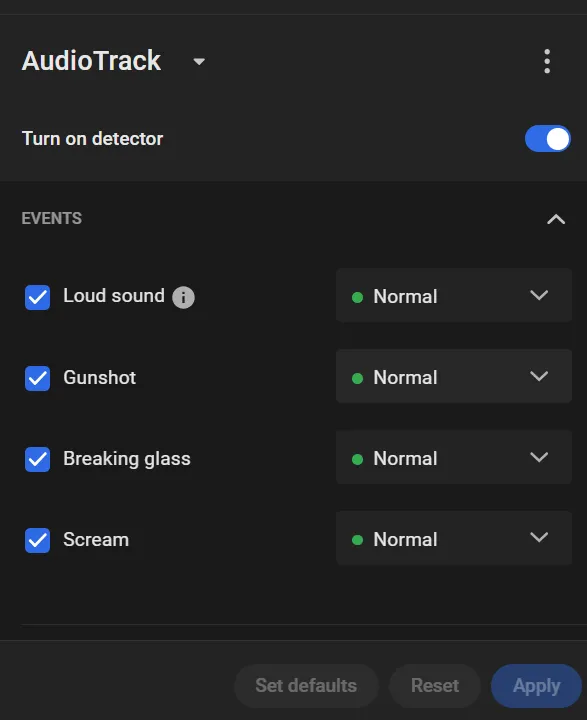
  1. Switch on the audio event types to generate under the EVENTS (Loud sound, Gunshot, Glass breaking, Scream).
  2. AudioTrack detector settings with the EVENTS list showing Loud sound, Gunshot, Breaking glass, and Scream all enabled at Normal priority
  3. For each audio event type, select a priority rating value.
  4. Drag the Audio sensitivity slider to adjust sensitivity to the event sound volume relative to the background noise level.
  5. Click Apply.

Any loud sound the module failed to identify as one of Gunshot/Glass breaking/Scream is reported simply as "Loud sound".