Find a Vehicle
The action requires a Case ID to be provided.
IREX video analytics can detect multiple types of events with vehicles. They are:
- Match or No match means that a license plate was detected on a vehicle, read and a match found or not in the system database. The former makes all the vehicle details, including those of the vehicle owner, available to the IREX user.
- Region entrance, Line crossing, Motion in region — according to the CarTrack Pro module settings.
- Speed control — speeding above the limit.
- Stopping/parking — parking rule violations.
- Traffic lights — traffic lights on/blink/off events.
It is the CarTrack Pro module that generates events like these. Each event type requires its own module configuration.
Vehicle Event Filters
Select the Vehicles on the dropdown on the left-hand side of the Events screen ...
Shared filters such as Resource Groups stay available on this tab.
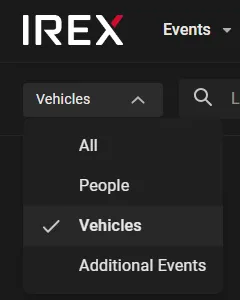
... to see that:
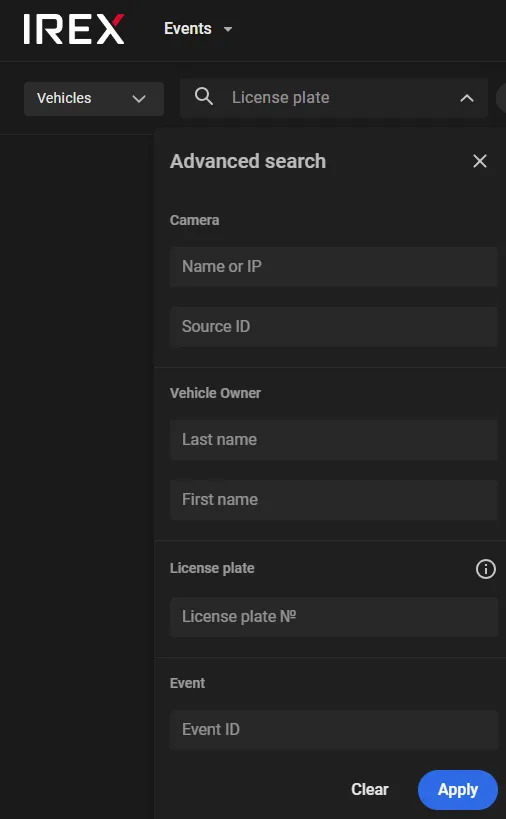
- The functionality in the search text box has changed:
- The new filters have appeared specific for events with vehicles:
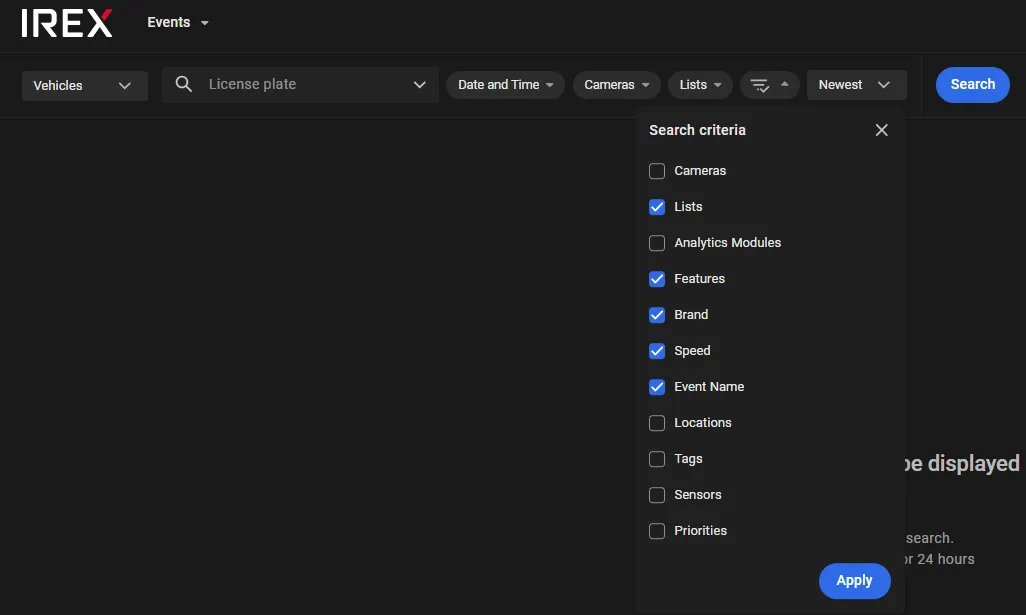
| Filter | Explanation |
|---|---|
| Features | Find a vehicle by features, such as vehicle type, color, etc. |
| Analytics modules |
Use it to find events of a type
|
| Lists | Events with vehicles on a user-chosen vehicle watchlist |
| Brand | Find a vehicle by car make |
|
Speed
|
Find high speeding events |
| Event name | Find a vehicle event by event name |
Provide Case ID
Searching for events, humans, or vehicles is an ethically sensitive procedure. Therefore, it requires a Case ID to be provided as the reason for the search. All searches are logged in full detail, including the user name/IP, searched subject, referenced document ID and date and time.
Find a Vehicle by Text Attributes
To find an event with a vehicle based on a text attribute, such as owner’s name, license plate number, event ID, etc., enter those into the advanced search form, then click Apply, then Search.
Those values can be:
- Video source name/IP/ID
- Person's or vehicle owner's name and surname.
- Event ID
- License plate number
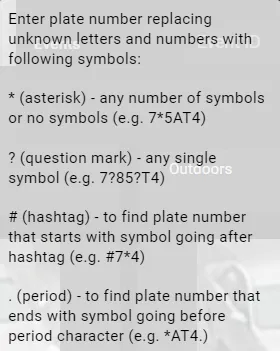
Wildcard Conventions with Plate Numbers
When dealing with license plate numbers, keep in mind the wildcard conventions that appear in a pop-up.
Find a Vehicle by Features
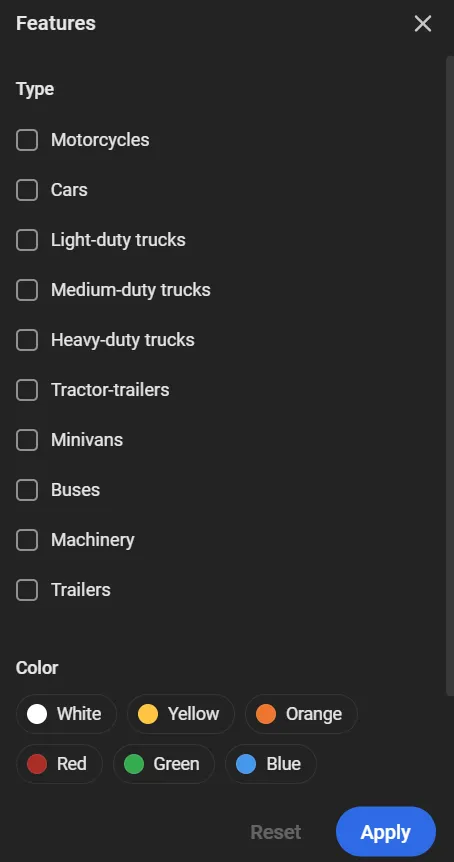
Inside the Features filter, criteria are available for Type and Color. An AND logical operator applies between these criteria. That means an event must match the parameters set in both criteria to appear in the search results. For example, if Type is set to Cars and Color is set to White, the results include only events where white cars were detected.
The following vehicle types are recognized:
- Motorcycles: any two-wheeled (or three-wheeled) motorized vehicle: motorcycles, tricycles, scooters, mopeds.
- Cars: sedan, hatchback, station wagon, coupe, SUV and crossover; vehicles designed to carry up to 8 people.
- Light-duty trucks: vehicles with a payload capacity of up to 3.5 tonnes.
- Medium-duty trucks: vehicles with a payload capacity of 3.5 to 12 tonnes.
- Heavy-duty trucks: vehicles with a payload capacity exceeding 12 tonnes.
- Tractor-trailers: a semi-truck with a semi-trailer, or a truck coupled with one or more trailers.
- Minivans: passenger vans and minibuses: vans for carrying passengers (up to 8 seats), including minivans and MPVs (multi-purpose vehicles).
- Buses: a vehicle for carrying more than 8 passengers. Includes city, intercity, and double-decker buses / trolleybuses.
- Machinery: wheeled and tracked tractors for agricultural or municipal use, specialized harvesting equipment, and construction and road machinery: excavators, graders, asphalt pavers, mobile cranes, loaders.
- Trailers: any type of trailer or semi-trailer that is detached from its tractor unit (for example, in a parking lot), or a passenger-car trailer.
To find events that involve vehicles of a selected type and color:
-
In the Features filter, select the vehicle type and/or color.
-
Click Apply to save the selected values.
Clicking Apply in the filter does not send the search request. Set all required filter values, then click Search.
Find by Car Make
A search like this returns events with e.g. “Toyota-s”, provided car make recognition is enabled on CarTrack Pro cameras.
Under the Brand, checkmark the brand (-s) of the vehicle of interest, then click Apply, then Search.
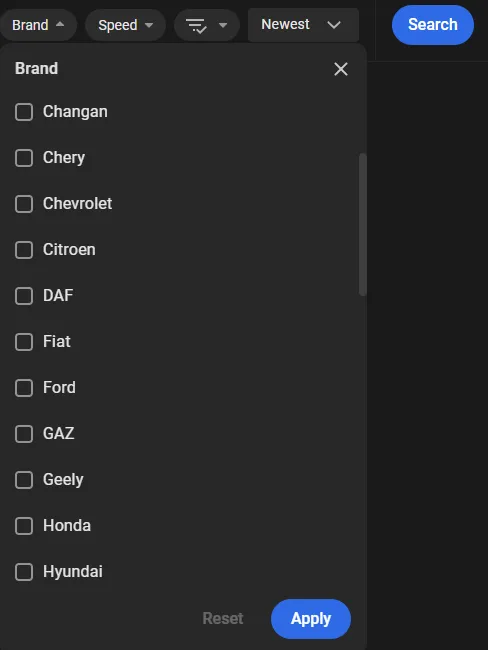
To execute a search like this, the program iterates through all events generated by all CarTrack Pro-s in their current configurations to select those that have their “Brand” attribute equal to any of the search options.
Find High-Speed Events
The search requires high speeding configured on CarTrack Pro cameras.
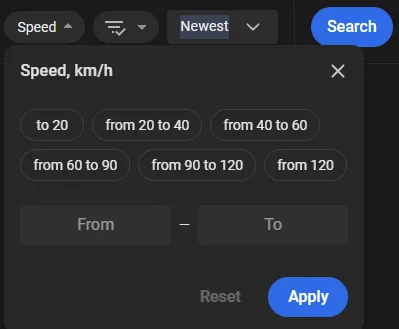
Under the Speed, click the speed limits of interest or enter a custom value, then click Apply, then Search.
Find All Vehicles on a List
Vehicle entries in the system database are grouped by lists exactly in the same way as personal entries are. So, to find events with all vehicles on the same list (e.g. “Hijacked cars”), checkmark the list name under the Lists, then click Apply, then Search.
Only lists that: 1) any User Group has access to, and 2) have the Recognition mode option enabled, can be selected.
Learn more about access to vehicle lists.
Find an Enrolled Vehicle
Events with a vehicle in the system database can be found in much the same way as with people. Specifically:
- Find its card in the system database.
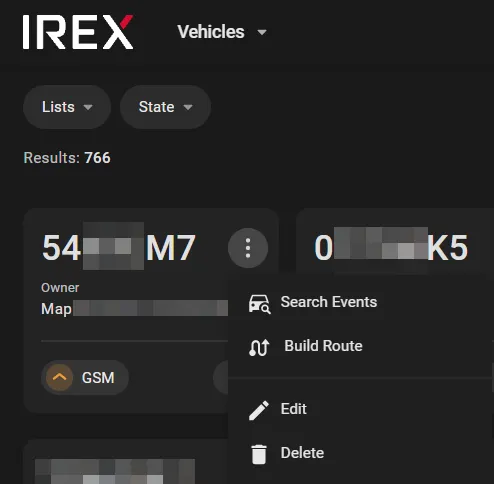
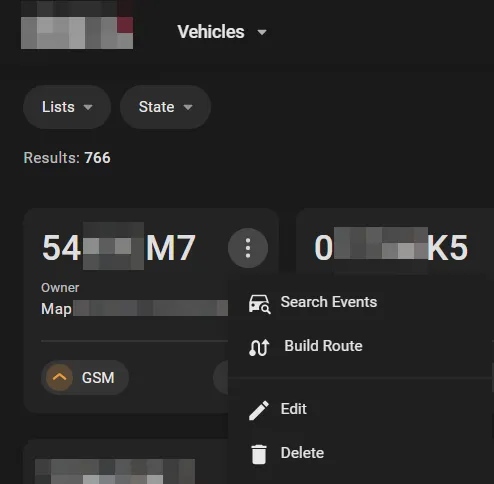
- Click the Search events command in the three-dot menu on the vehicle card of interest on the Vehicles screen.
Find Vehicle Events by Name
When managing video analytics, the IREX Platform Admin assigns names (tags) to rule-based events. For instance, a rule-based event by CartTrack Pro may have got a self-explanatory name of “Illegal parking”, “Intersection blocked”, or “Wrong way driving”.
The complete list of event tags appears under the Event Names on the Events — Vehicles screen to make it easier for users to find such events.
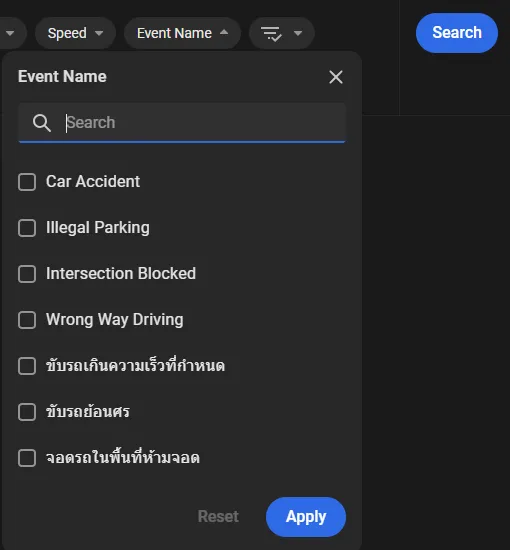
Checkmark the event names of interest on this list, keeping in mind the step-by-step query routine to go to the workspace holding those events.
Find a Vehicle Event by Module and Type
The CarTrack module can be set up to detect or not events of a type. Those types are under the Analytics modules.
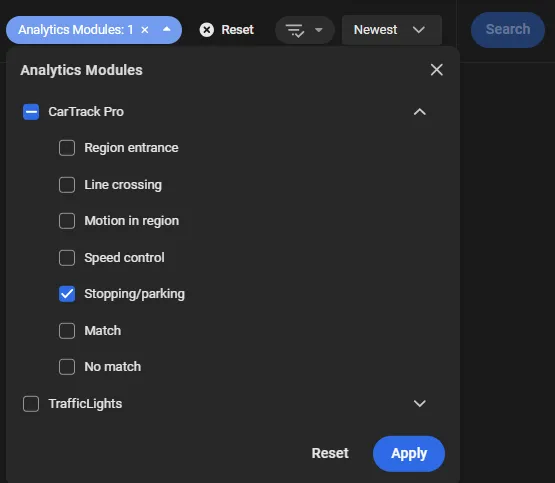
Checkmark the event types of interest, e.g., “Stopping/Parking” when solving an “Illegal parking” use case. Then click the Apply, finally — the Search.
Find a Previously Seen Vehicle
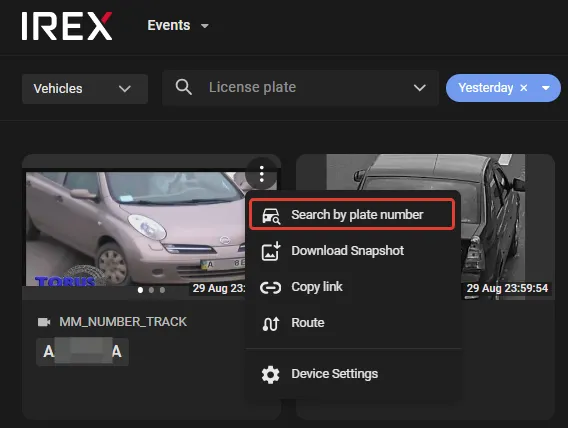
To find a vehicle that has already been spotted on a camera, click the three-dot menu on the event card and run Search by number plate — all other events will be displayed in which the same number plate was spotted all across the system coverage range.
Watch Traffic Light Signals Changing
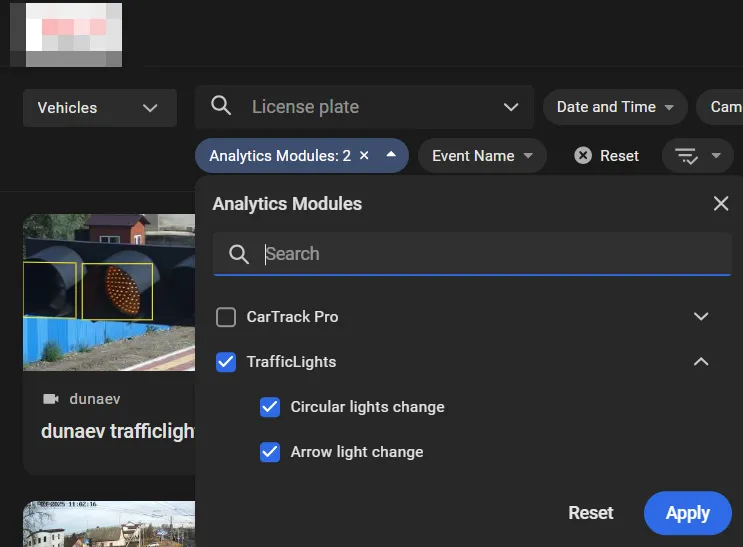
The Events - Vehicles screen also shows the events of monitored traffic lights going red/yellow/green. To do so, checkmark the Traffic lights under the Analytics modules as shown.
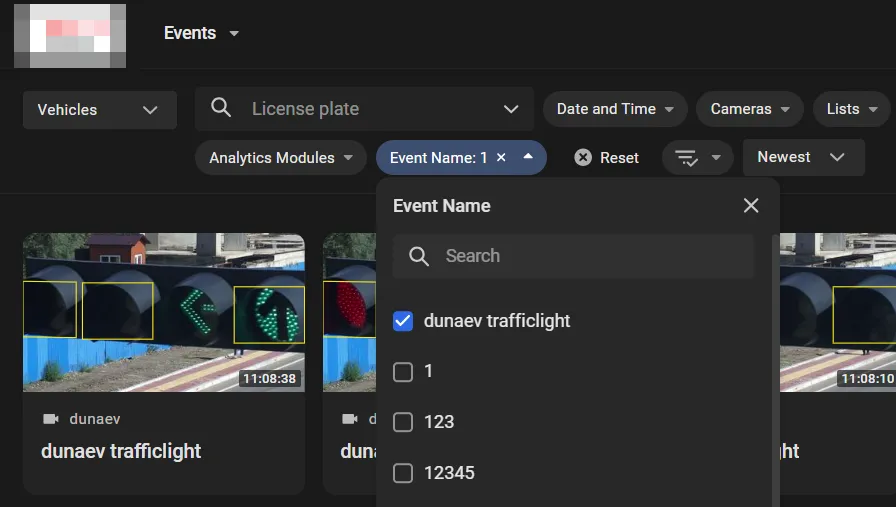
To refine the search results, e.g., to select such events only on pre-defined traffic lights, use the Event name filter as shown, where the searched event name is the one given here or here.
Find Violations by Motorcycle Riders
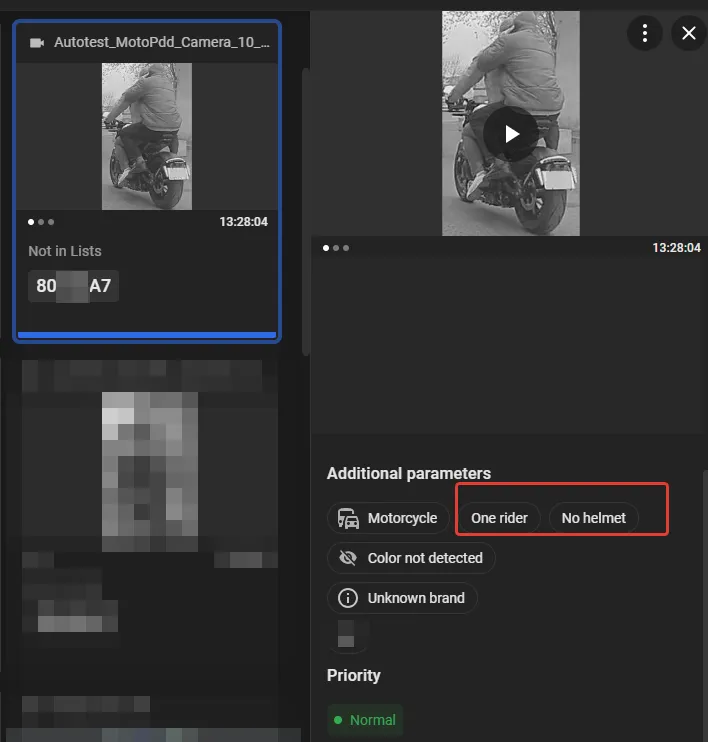
If CarTrack is set up properly with Track, Recognize = Track vehicle, Track vehicle and recognize plate or Track vehicle with recognized plates (see step 2 here), it can detect whether motorcycle riders wear helmets and count how many riders are on one motorcycle. The use of the Motorcyclists filter on the Events — Vehicles screen ...
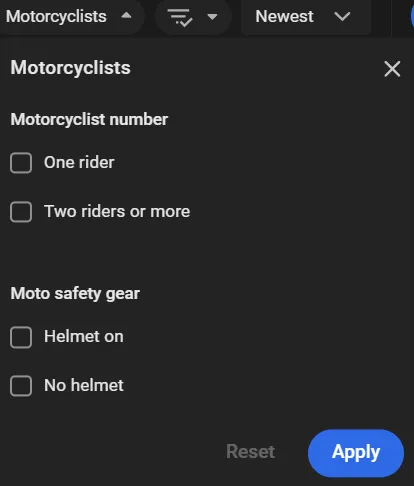
... produces an array of events, in which license plates were read on motorcycles, riders were counted, and helmets were detected or not