
Traffic Lights
The purpose of the module is to ...:
- Detect the condition of the traffic lights signals (on, off, blinking), circular lights, and arrows included.
- Supply information about the condition of the traffic lights signals to the traffic rule controller.
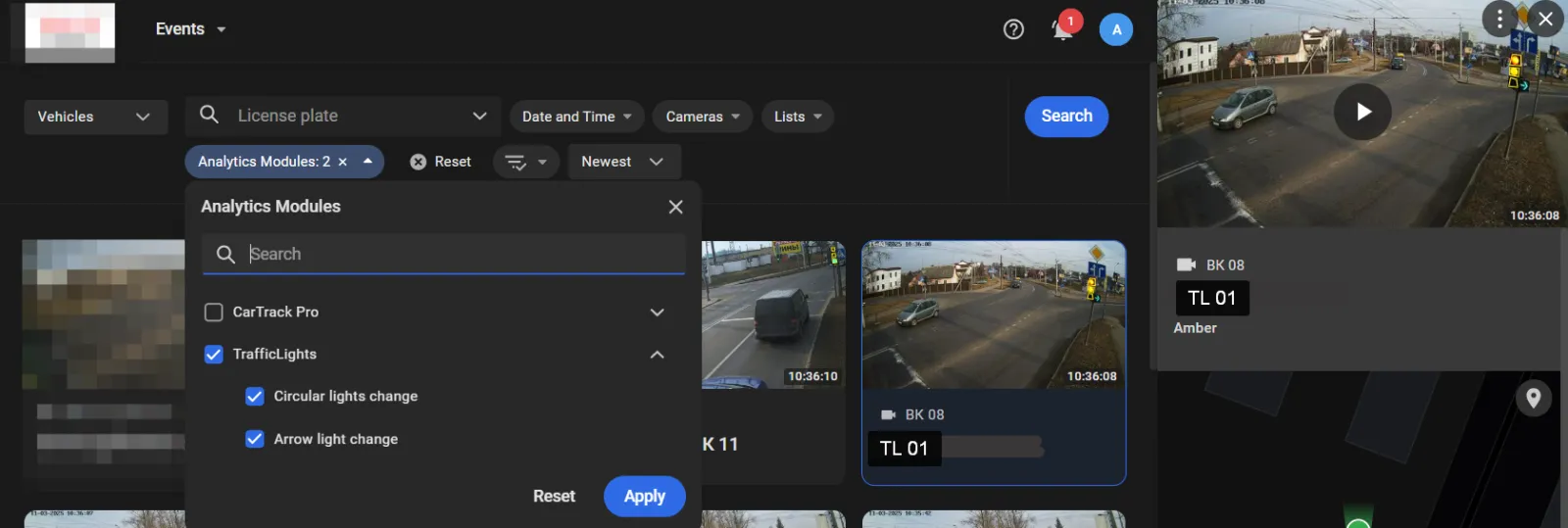
These are the traffic lights set up in the RULES section of the video analytics settings of the module. Every time the condition changes, the module outputs an event that can be seen on the Events page with the filter configuration, as shown.
These are the traffic lights set up in the TRAFFIC OBJECTS section of the video analytics settings of the module.
For instance, the module “tells” the traffic rule controller that the red light was on at the moment the car crossed the stop line, so the controller makes the decision that the “Stop line crossed” violation did occur.
.webp)
Hardware Requirements
- Camera position: fixed camera
- Resolution: from 1280x720 (HD Ready) to QHD 2592x1944.
- Tilt: +5° to 30°
- Pan: -45° to +45°
- Roll -5° to +5°4
- Minimum detected light size: 16x16 px.
Tips to Set Up the Module
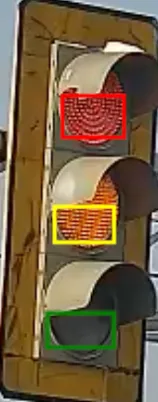
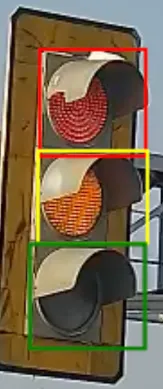
- Light frame must be over 16x16 px in size.
- A light frame should encompass the brightest light area; try not to allow empty zones or light caps inside the frame.
|
Correct
|
Incorrect |
|---|---|
|
|
Main Module Settings
The TrafficLights module can capture a traffic light shift from its normal position, for example in a strong wind or after a mechanical impact.
To capture a shifted traffic light, on the camera that monitors that traffic light:
- With the TrafficLights module turned on, on the Main tab turn on the Traffic lights shifted event option and set its priority.
- Click Apply.
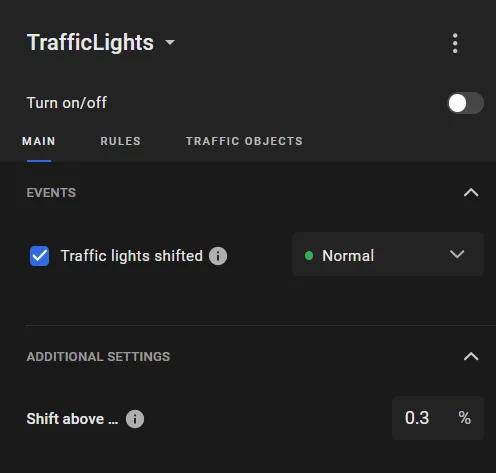
With Traffic lights shifted turned on, the platform tracks the actual position of the traffic light sections and keeps recognizing signals. A Traffic lights shifted event is generated if the sections shift by more than 70% of their size. Capturing that event does not stop the module.
Set Up Traffic Lights for Events
Then on the RULES tab, set up the traffic lights to be monitored to output events every time a signal changes.
Set Up the Circular Lights Control
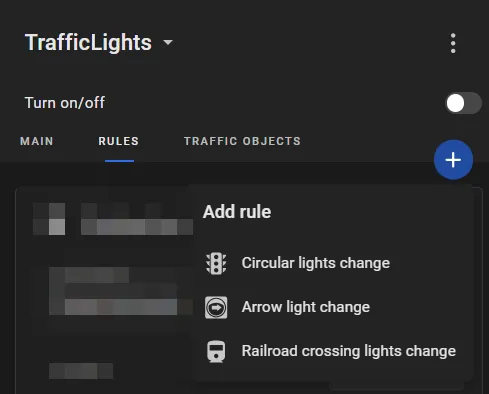
- Run the Circular light change as shown.
- On the card of the same name that has appeared, enter the event name.
- Build frames around the red, yellow, and green lights, keeping the tips in mind.
- Click the “+” as shown to repeat the same procedure with the secondary lights, e.g. at the exit from the crossroads.
- Click the Apply.
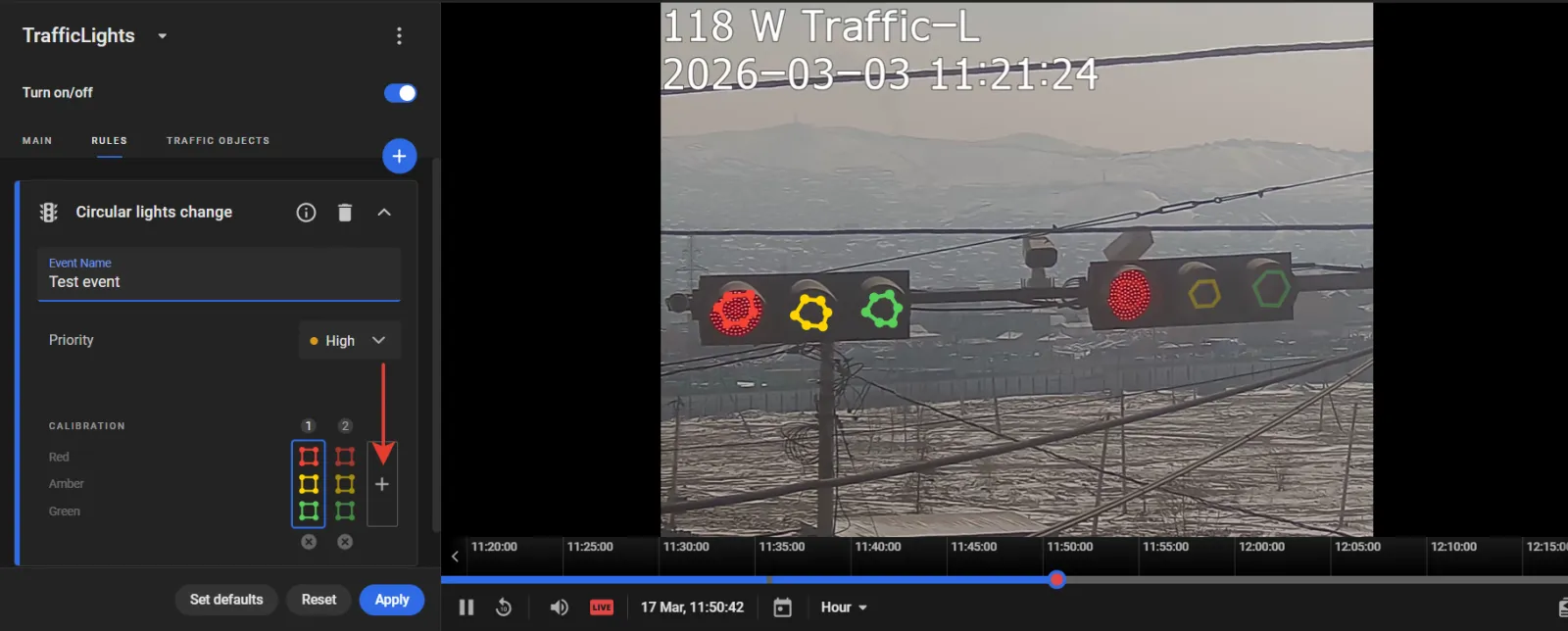
These shall be considered a backup for the main ones, e.g., in case the main signals get screened or dysfunctional.
The module will then start streaming the signal change events onto the Events screen. Such events can later be found using the by-type or by-name event filters.
Set Up Arrow Signal Control
- Run the Arrow light change as shown.
- On the card of the same name that has appeared, enter the event name.
- Build the frame around the arrow, keeping the tips in mind.
- Click the “+” as shown to repeat the same procedure with the secondary arrow, e.g., at the exit from the crossroads.
- Click the Apply.
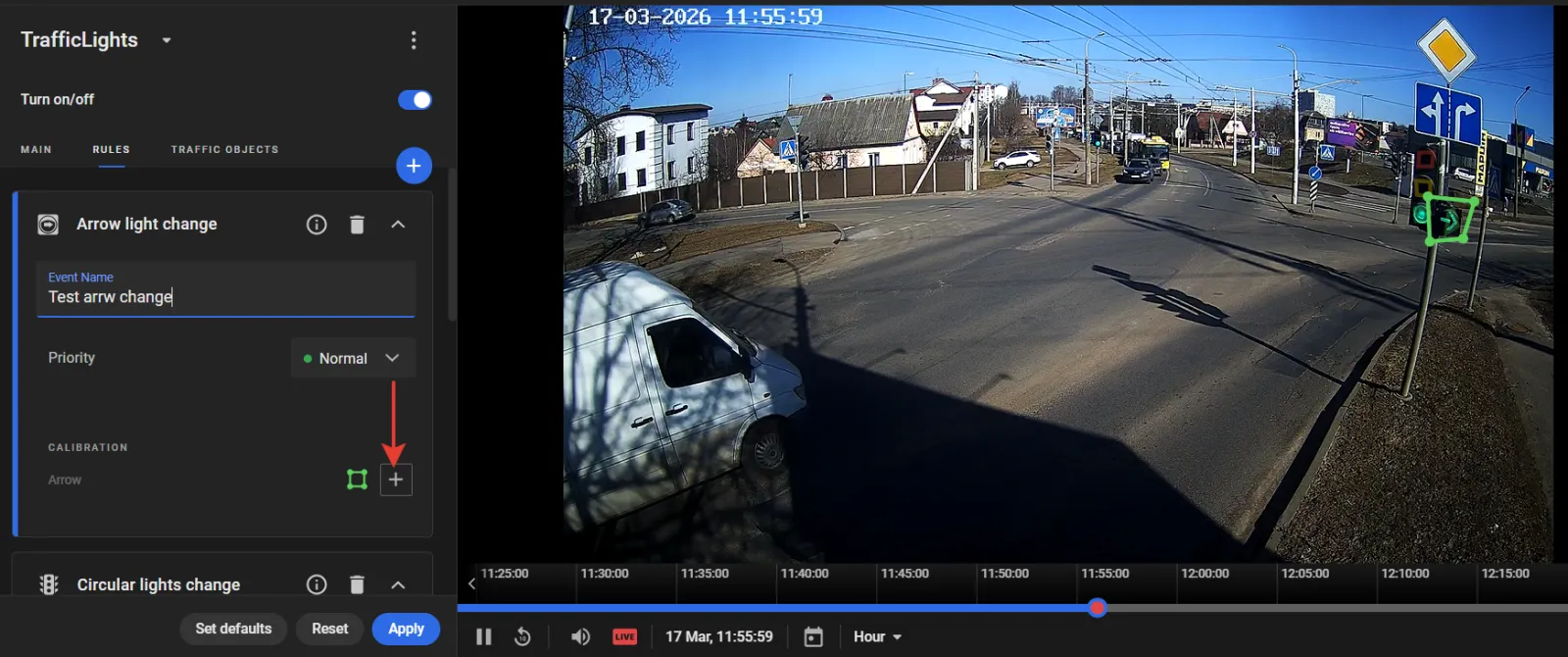
It shall be considered a backup for the main arrow, e.g., in case it gets screened or dysfunctional.
The module will then start streaming the arrow light change events onto the Events screen. Such events can later be found using the by-type or by-name event filters.
Set Up Railway Crossing Signals
Such signals are required to control violations at railway crossings.
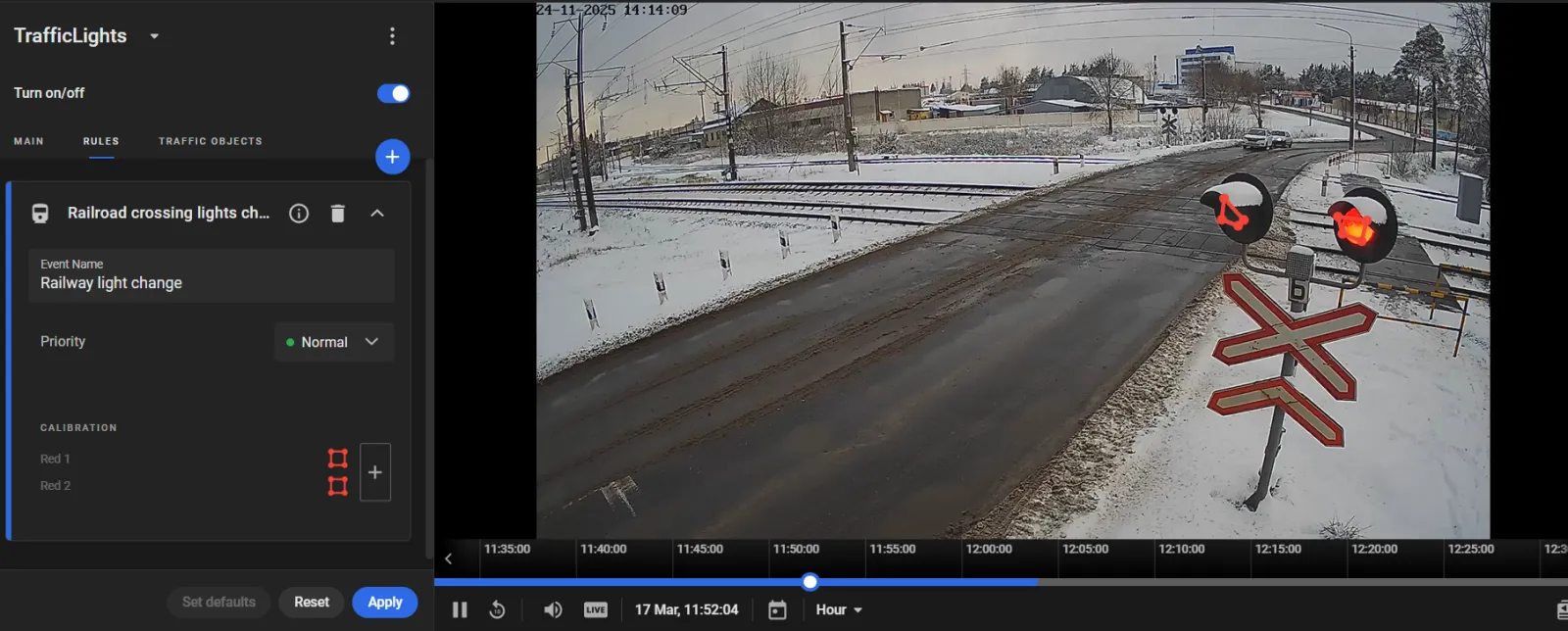
- Click Railroad crossing light change as shown
- On the card that opens, enter an event name.
- Build the frames around the railway crossing lights.
- Click Apply.
Set Up Signals for Traffic Rules Violations
On the TRAFFIC OBJECTS tab, set up the lights and arrows that will be reported to the traffic rule controller, thus enabling it to make its decisions about whether a traffic lights violation actually occurred.
Click the Circular lights, Arrows or Railroad crossing lights on this tab, and then follow the same routine to build the frames around the lights that will be watched.
Give the traffic lights and arrows self-explanatory names, since they will be needed when setting up the “Do not go” signal in the crossroads crossing rules. For instance, “Left-pointing arrow” may be a good name for the arrow that controls left turns at a crossroads, etc.