Set Up Right-of-Way Violations
Definition
A right-of-way violation means a vehicle fails to yield to pedestrians in a crosswalk. We illustrate the logic of detecting right-of-way violations with an example, in which we consider pedestrians crossing a one-way, two-lane street.
As soon as a pedestrian enters the “Crosswalk-1” segment (green frame on the left across the left lane) moving left-to-right (“Forward” direction), the program starts tracking cars in “Motion control area -1” and “Motion control area-2” (red frames). The cars in both lanes must not leave these areas at t=tcout before the pedestrian leaves "Crosswalk-1" at t=tpout. Otherwise, i.e. if tcout < tpout for any of the cars, a right-of-way violation is triggered.
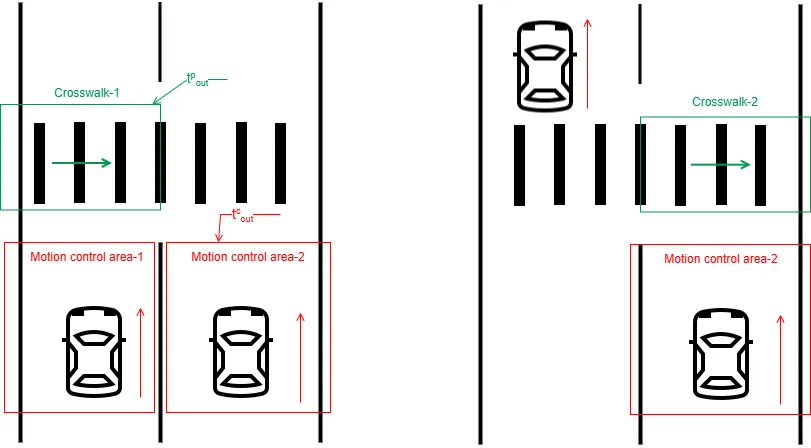
When the pedestrian reaches the “Crosswalk-2” segment across the right lane, and now the car in the left lane may proceed, while the one in the right lane still may not. This means that the car control area shrinks to “Motion control area-2”, yet the criteria for event generation remain the same: tcout < tpout.
The car control area configuration changes for pedestrians moving right-to-left (“Backward” direction), yet the basic principle remains the same.
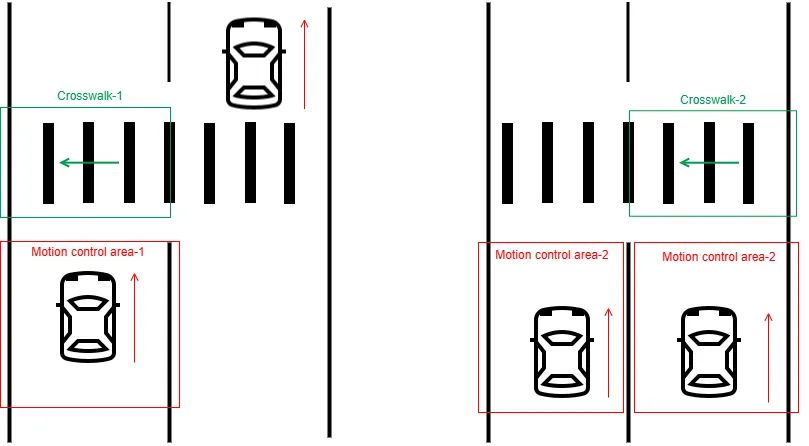
There can be more complex configurations of the areas, depending on whether it is a one-way street or a bi-directional one, the number of lanes in each direction, and other factors.
In summary, the detection of a right-of-way violation requires crosswalk segments, pedestrian motion directions, and vehicle motion control areas, all linked to each other in a matrix, which in our example looks like this:
|
Direction Segment |
Forward
|
Backwards
|
|---|---|---|
|
Crosswalk-1
|
MCA-1+MCA-2
|
MCA-1
|
|
Crosswalk-2
|
MCA-2
|
MCA-1+MCA-2 |
The presence of pedestrians on crosswalks and their motion directions are controlled by cameras having ObjectTrack Pro enabled and set up properly. Cameras with CarTrack Pro control vehicles in motion control areas.
Workflow to Set Up Right-of-Way Violations
- Build a road object.
- Bind cameras to it.
- Name the violation.
- Build the crosswalk areas.
- Build the motion control areas.
- Formulate the rule.
- Turn on violation control.
We explain these steps below with reference to the example above.
Build a Road Object
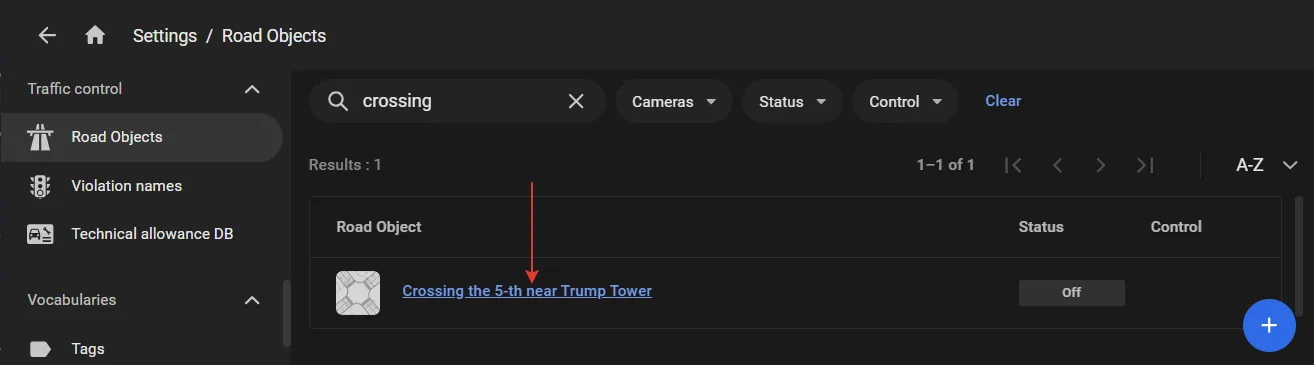
Build a road object as described here. Let it be named “Crossing the 5-th near Trump Tower” in our example.
Bind Cameras to Road Object
Detection of a right-of-way violation requires:
- The camera intended to monitor pedestrians crossing the street. It must have ObjectTrack Pro enabled.
- The camera intended to monitor vehicles yielding to pedestrians or not. It must have CarTrack Pro enabled.
- The overview camera.
- On the Road objects page in the settings, click as shown to open the road object page:
-
Set the camera filter to All ...
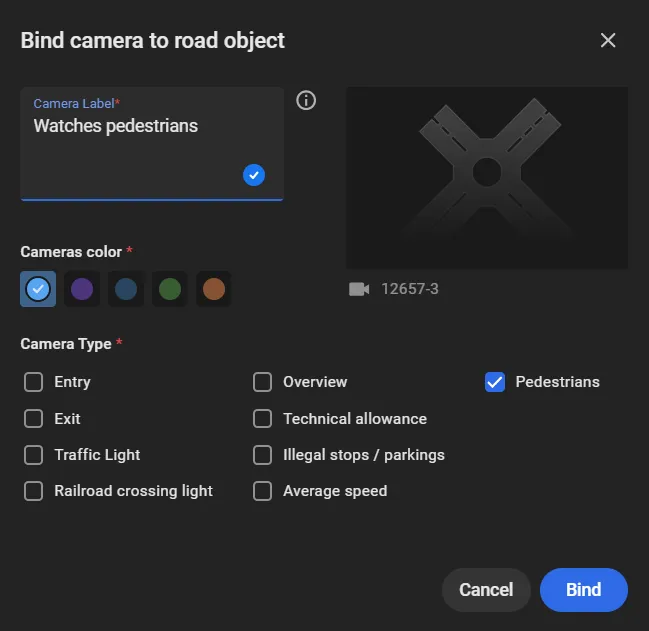
... to run Bind to road object on the camera meant to watch pedestrians crossing the street. The window with the same name will open.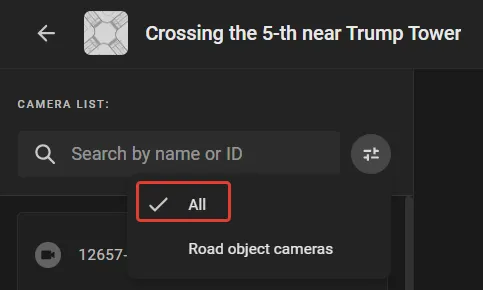
- Checkmark Pedestrians under Camera type.
- Enter a Camera Label, which will appear wherever it is relevant to the crossroads crossing rule e.g. it is “Watching pedestrians”.
- Select a color for the camera icon on the crossroads diagram.
- Click Bind.
- Drag and drop the camera icon onto the road object diagram to place it where it is physically located.
- Redraw the camera’s field of view on the diagram to represent it realistically.
- Repeat steps 2-8 with the cameras intended to monitor vehicles (labeling it in a self-explanatory manner, e.g., “Watching vehicles”) and the overview camera.
Name the Violation
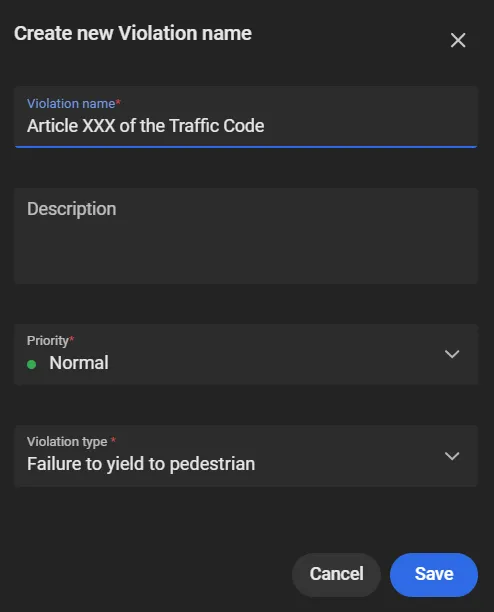
On the Violation name page in the settings, click the “+” to open a window, then:
- Set Violation type to “Failure to yield to pedestrians”.
- Set an event priority value.
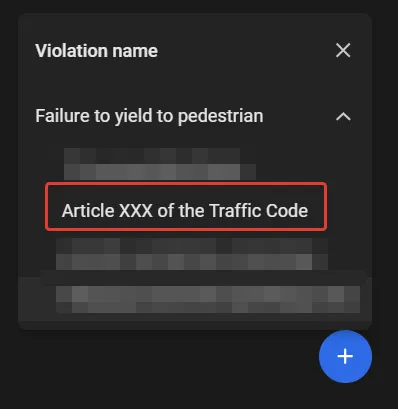
- Type a clear, descriptive name for the planned violation at this particular crosswalk, e.g., let it be “Article XXX of the Traffic Code”.
Build the Crosswalk Areas
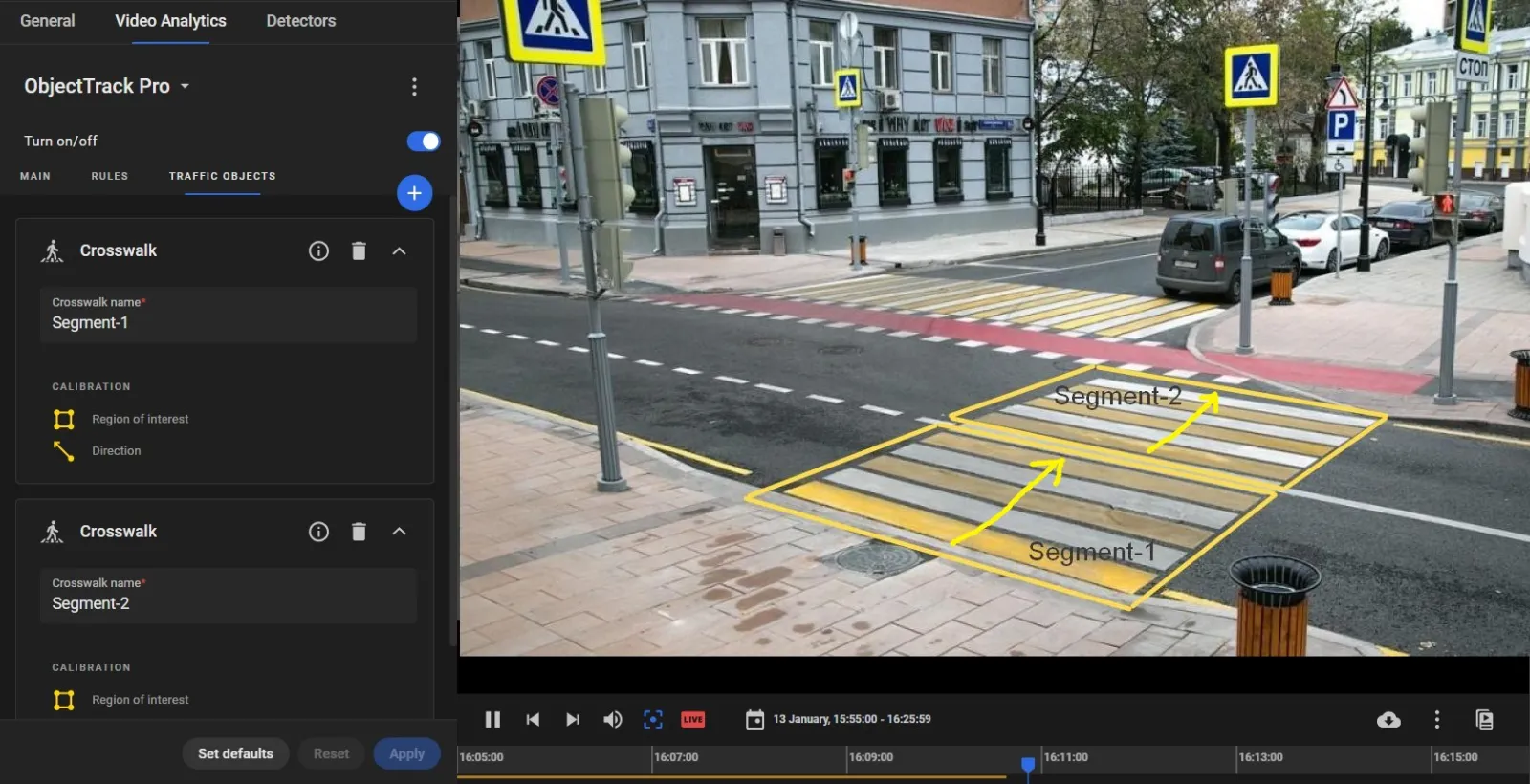
Build the crosswalk areas as described here, according to the crosswalk configuration. Define the “Forward” direction in each. For instance, the example above requires the two crosswalk areas to be built, named “Segment-1” and “Segment-2” in our example, and directed as shown:
Build the Motion Control Areas
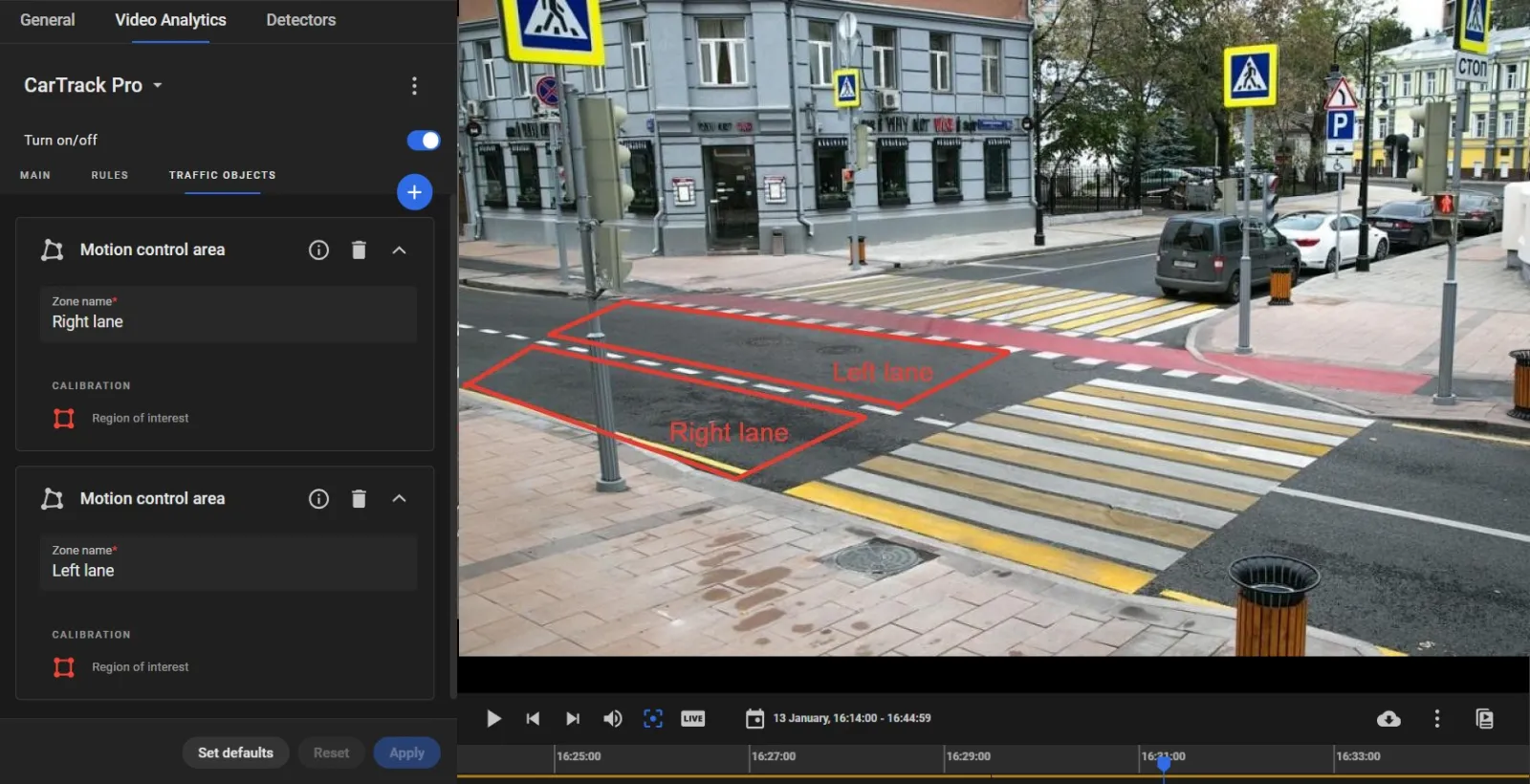
Build the vehicle motion control areas as described here, according to the crosswalk configuration. For instance, the example above requires the two motion control areas (named “Right lane” and “Left lane” in our example) to be built as shown:
Formulate the Rule for a “Failure to yield to pedestrian” Violation
A rule for a “Failure to yield to pedestrian” violation is a composition of:
- A crosswalk area with “Forward/ Backward” directions defined in it.
- The direction that a pedestrian is actually moving in this area (“Forward” or “Backward”). This comes from ObjectTrack Pro on the camera monitoring pedestrians.
- The motion control areas the vehicles are not allowed to drive through while there is a pedestrian in the crosswalk area 1 moving in the direction 2.
- The name of the violation.
Schematically, a rule is a cell in a matrix, e.g., like this.
Formulate the rule on the Violation rule screen, opened by running the Violation rules in the three-dot menu on the road object page.
The left-hand sidebar in this window shows:
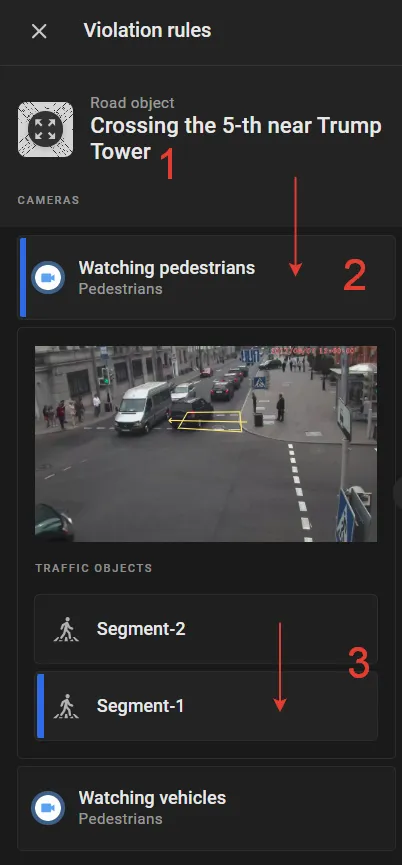
1 - the name of the road object, “Crossing the 5-th near Trump Tower” in our example.
2 - the label of the camera monitoring pedestrians in the crosswalk areas, “Watching pedestrians” in our example.
3 - the names of the crosswalk areas built in ObjectTrack Pro settings on the cameras, monitoring pedestrians, “Segment-1” and “Segment-2” in our example.
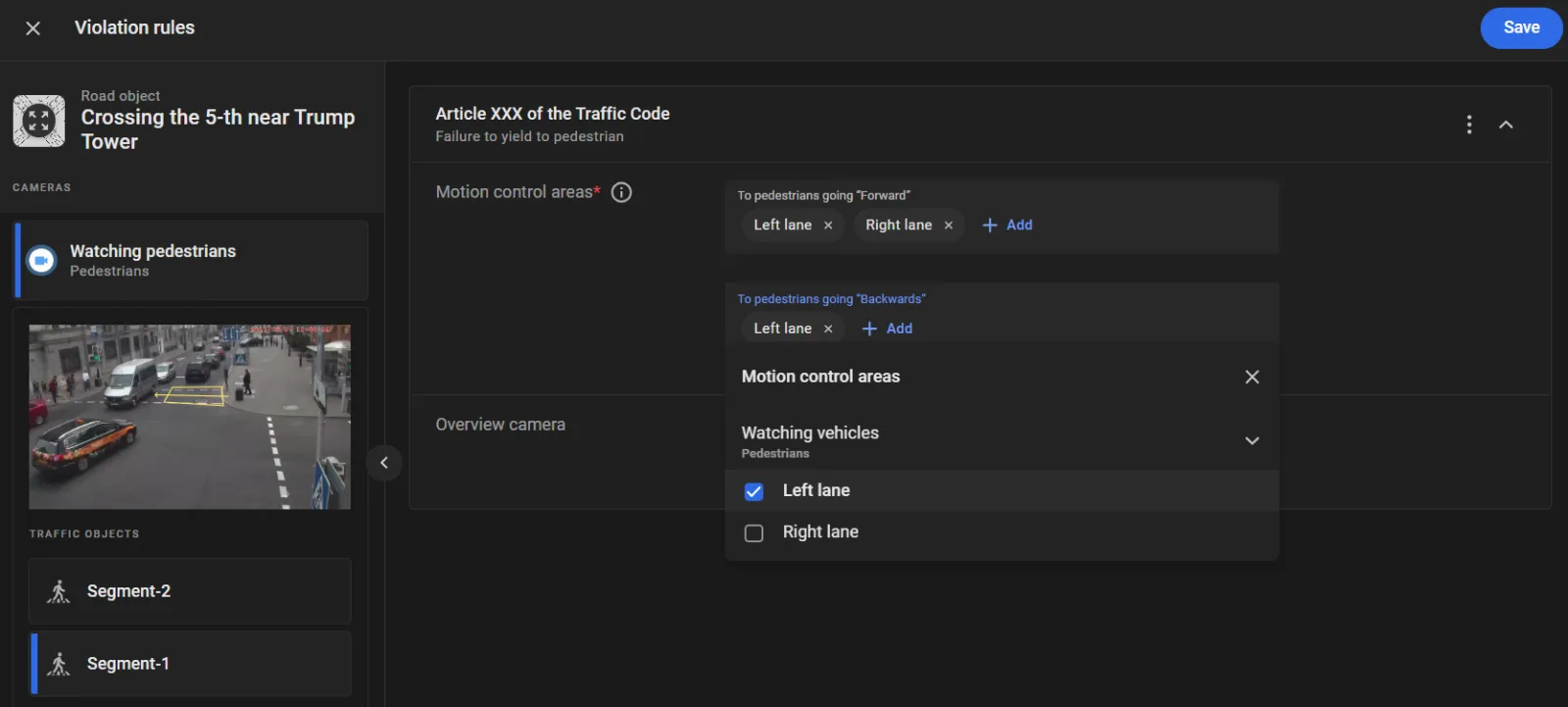
Click 2, then click e.g., Segment-1, to begin with - the task now is to specify:
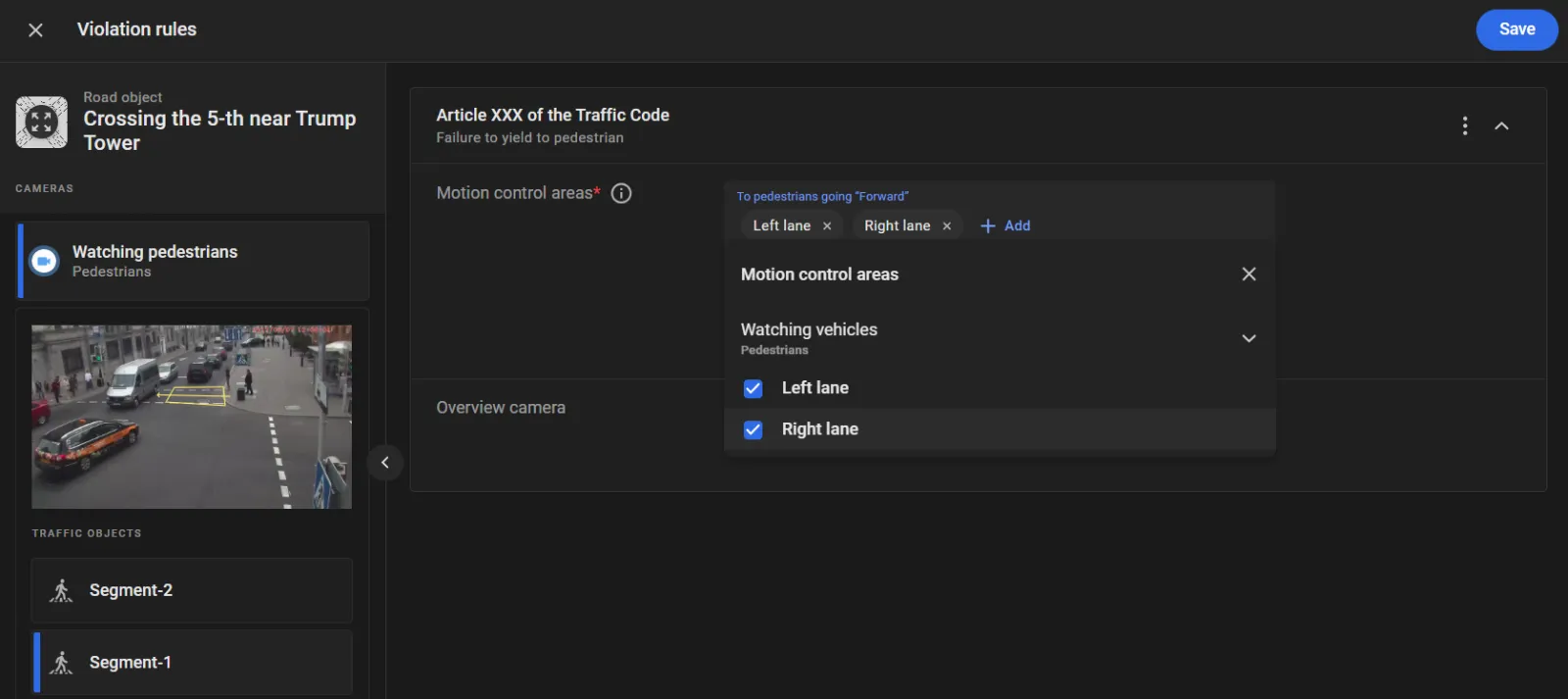
- The motion control area (-s) for the pedestrians in the “Segment-1” area going “Forward”. In our example, it should be both the “Left lane” and “Right lane” areas.
- The motion control area (-s) for the pedestrians in the “Segment-1” going “Backwards. In our example, it should be the “Left lane”.
- The violation name.
To do so:
- Click “+” to select the violation name of e.g., “Article XXX of the Traffic Code”.
- Checkmark “Left lane” and “Right lane” (the motion control area names built in CarTrack Pro settings) under “Watching vehicles” (the label of the camera monitoring vehicles) on the Motion control area - To pedestrians going “Forward” list.
-
Checkmark “Left lane” under “Watching vehicles” on the Motion control area - To pedestrians going “Backwards” list.
- Click Segment-2.
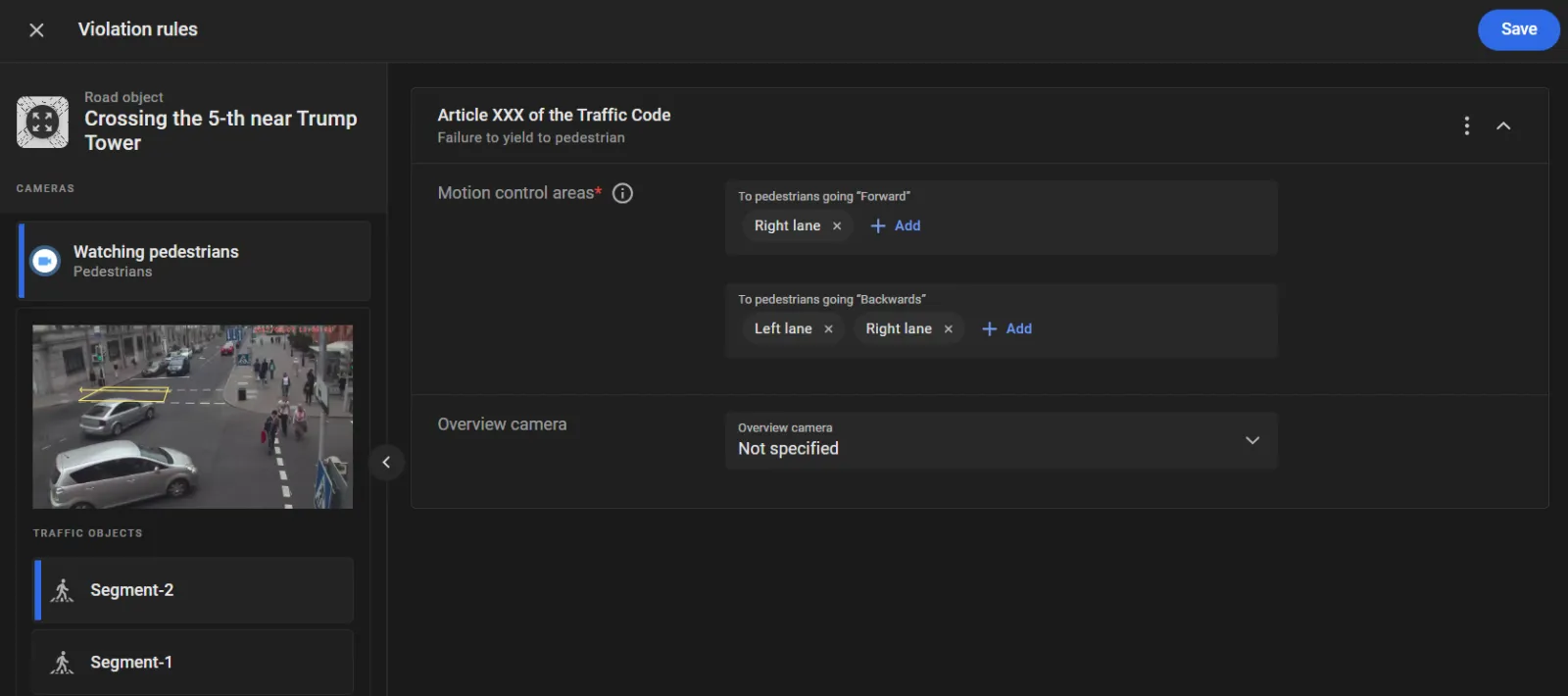
- Repeat the steps 1 - 3 to obtain the result like this:
- Click Save.
The task now is to specify:
The motion control area (-s) for the pedestrians in the “Segment-2” area going “Forward”. In our example, it should be the “Right lane” areas.
The motion control area (-s) for the pedestrians in the “Segment-1” going “Backwards. In our example, it should be both “Left lane” and “Right lane”.
The violation name.
Turn On the Violation Control
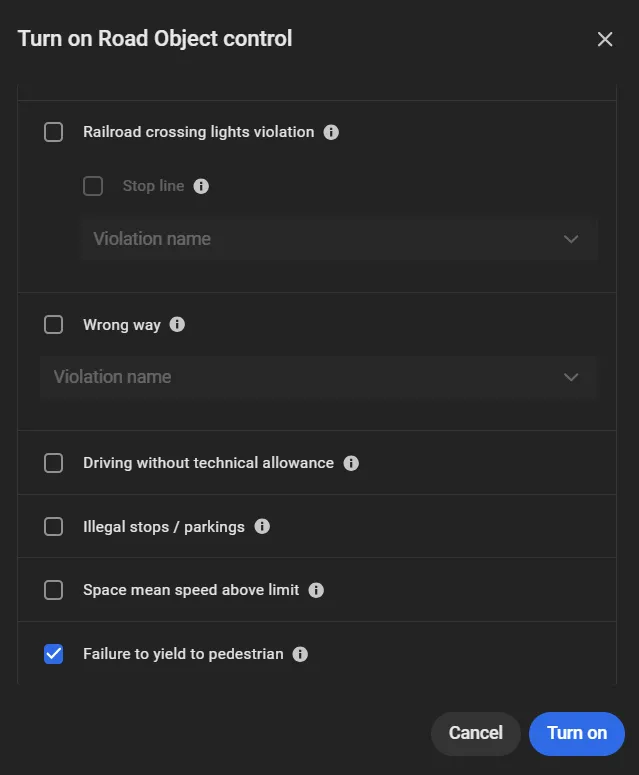
Click Turn on control in the three-dot menu on the road object page to checkmark Failure to yield to pedestrians in the Turn on road object control window that opens.