Speed Control
Definition
The “Space mean speed above limit” violations occurs if the car's space mean speed V calculated as ...
V=D/(T2 - T1)
... appears above the limit Vmax with account for a user-defined permissible tolerance ΔV, as the diagram below illustrates.
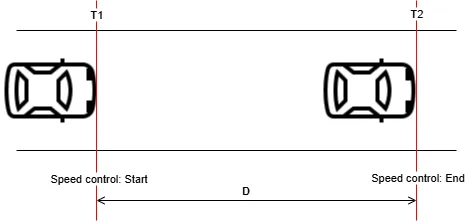
Here:
- D is assumed known.
- T1, T2 are the time stamps of the car's Focal point crossing the “Speed control: Start” and “Speed control: End” lines. They are reported as the attributes of the line crossing events detected by CarTrack Pro on the cameras watching these lines.
Steps to Set Up Illegal Stop/ Parking Control
- Build a road object, which might not be a crossroads for this violation type but a linear road segment (e.g. its name is “Broadway segment”). An already existing road object can also be used at steps 2 — 7.
- Bind cameras to it.
- Name the violation.
- Build the “Speed control: Start” and “Speed control: End” lines in CarTrack Pro settings on the camera meant to monitor these lines.
- Link the violation name (step 3) to the “Speed control: Start” and “Speed control: End” lines (step 4).
- Turn on speed control.
- Review the results.
Bind Cameras to Road Object
Detection of an illegal stop/ parking requires cameras that monitor the no stop/ parking area. It must have CarTrack Pro enabled.
- In the Road objects sections of the settings, click the road object name as shown ...
- Set the camera filter to All to find the camera intended to monitor the “Speed control: Start” and “Speed control: End” lines on the camera list, then run Bind to road object in the three-dot menu.
- Check the Average speed under Camera type.
- Enter the camera label, which will appear wherever it is relevant to this kind of violation.
- Select a color for the camera icon on the road object diagram.
- Click Bind.
- Drag and drop the camera icon on the road object diagram to place it where it is physically located.
- Redraw the camera’s field of view on the diagram to represent it realistically.
- Optionally, bind an overview camera in the same way, which, however, con be combined as one.

... to open the next screen:
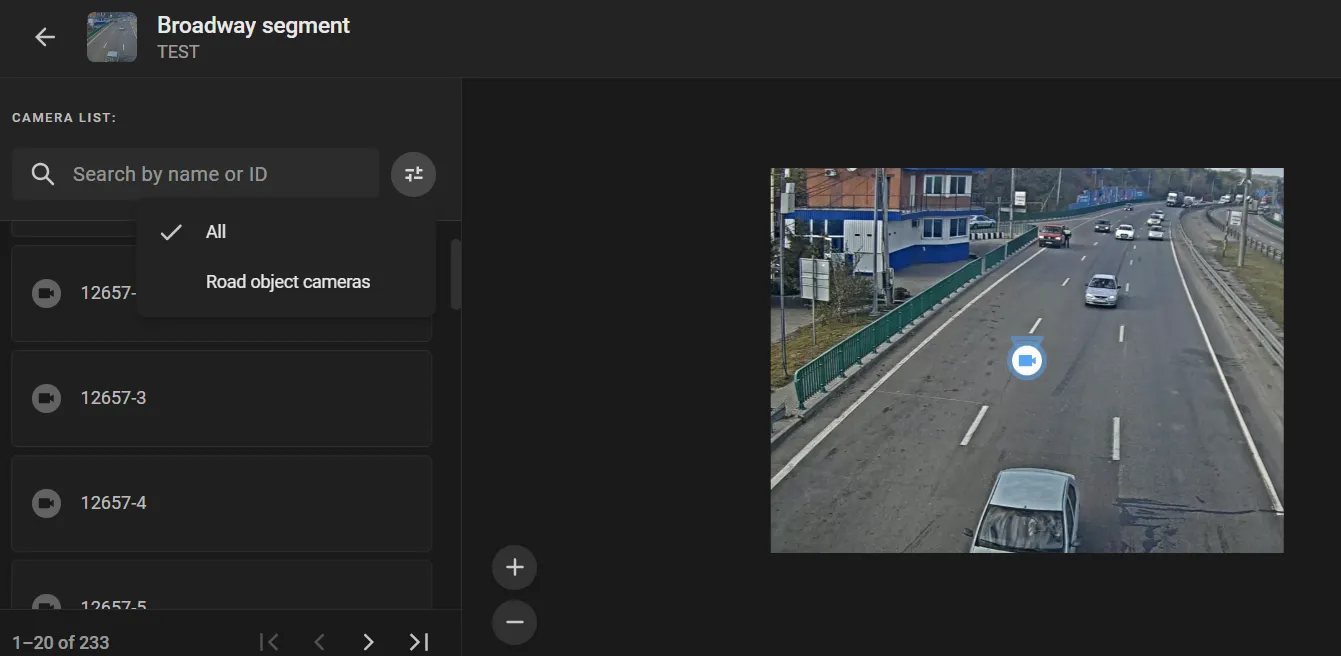
A window with the same name will open.
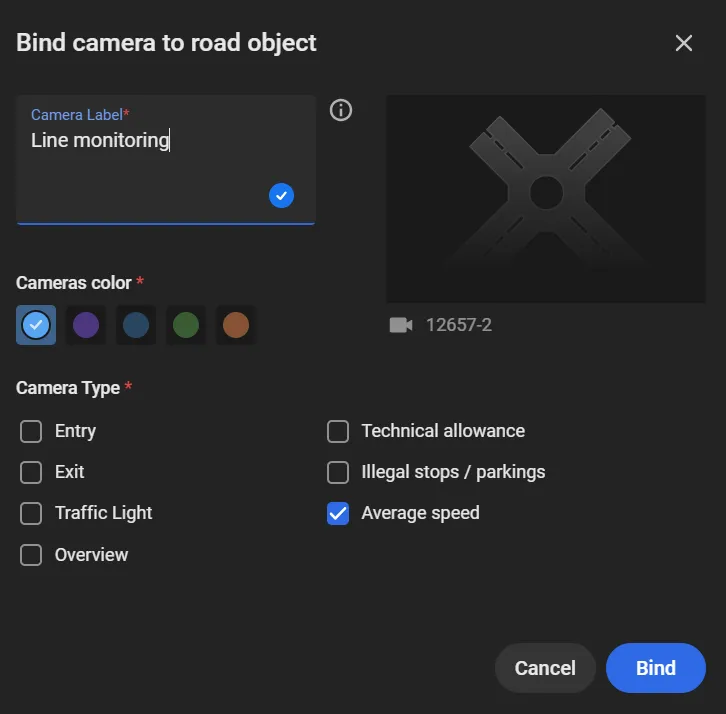
Let the label be clear and self-explanatory, e.g. “Line monitoring”.
Name the Violation
On the Violation name page in the settings, click the “+” to open a window, then:
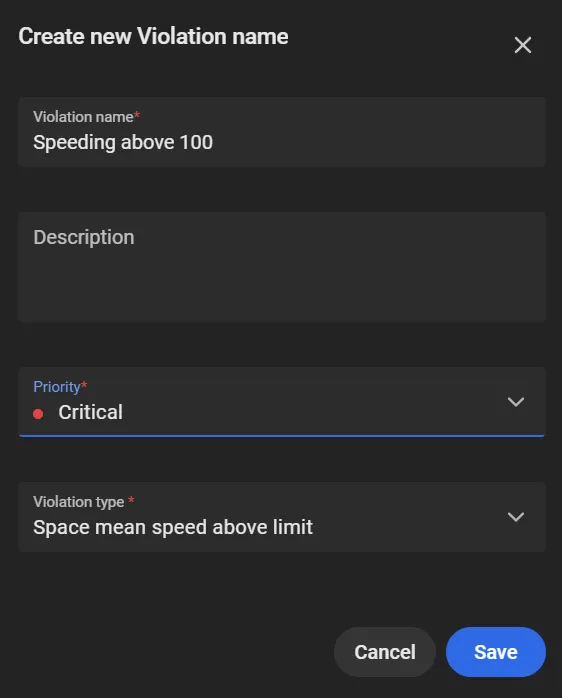
- Set Violation type to “Space mean speed above limit”.
- Set an event priority value (e.g. “Critical” if the speed limit is 100).
- Type a clear, descriptive name for the planned violation, e.g., “Speeding above 100”.
Build the Speed Control Lines
Build the “Speed control: Start” and “Speed control: End” lines in CarTrack Pro settings on the camera meant to monitor these lines. Give these lines clear self-explanatory names, e.g., “Start line” and “End line”.
Link the Violation Name to the Speed Control Lines
Now let a violation of the “Illegal stop/ parking” type in the “No stop/ parking” area get its name. To do so:
- On the road object page, click Violation rules in the three-dot menu — the screen will show:
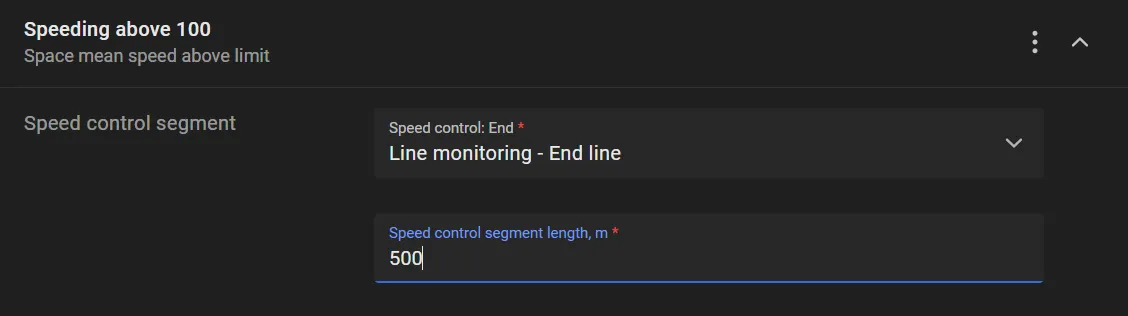
- In the Speed control segment, select the “Speed control: End” line labeled “End line” as shown.
- Enter the speed control segment length value, which we assume known.
- Enter the speed limit and tolerance value into the respective fields.
- Optionally, specify the cameras overviewing the speed control start and end.
- Click Save.
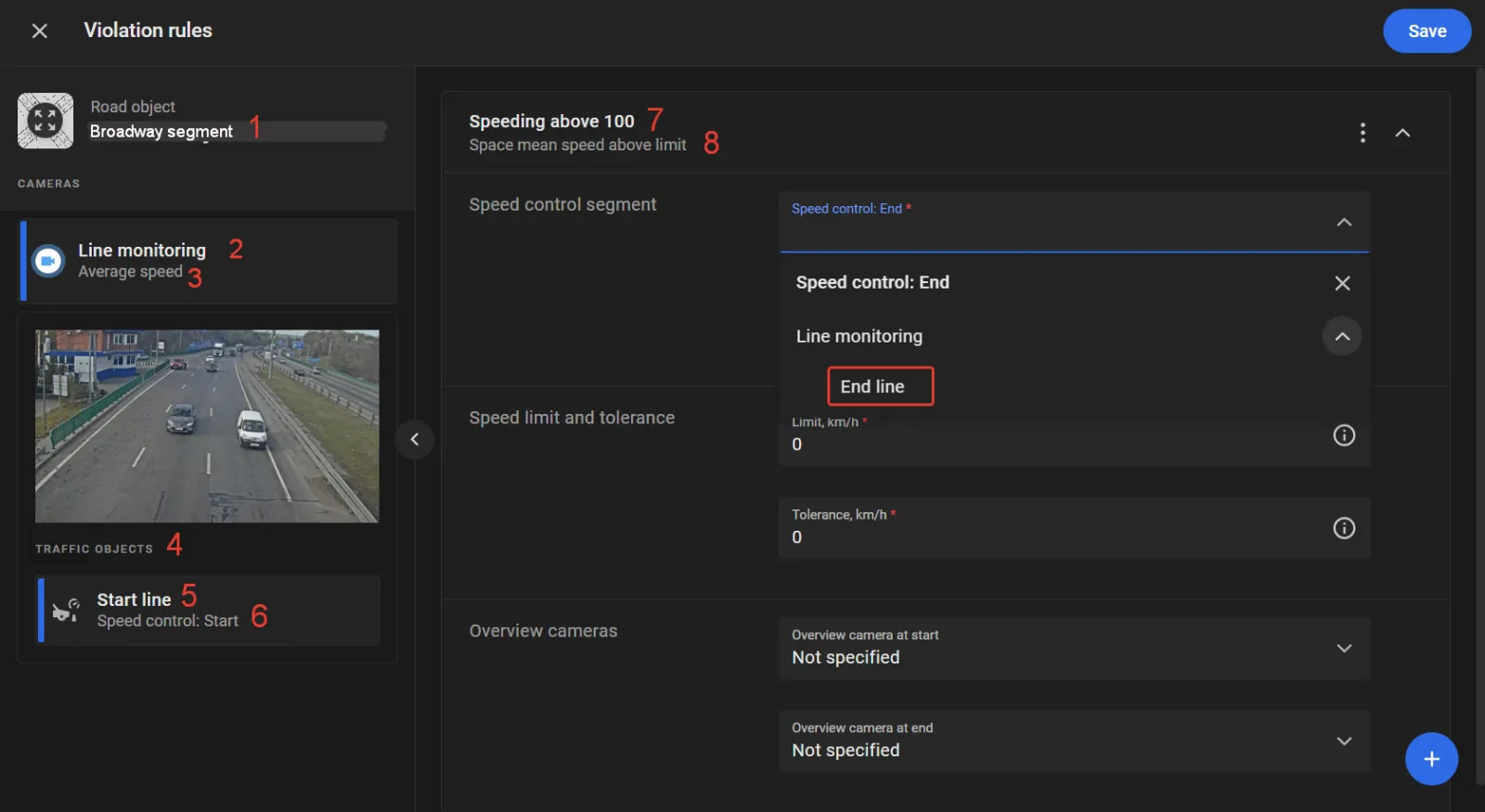
1 — the road object name given at step 2 in “Road objects”
2 — bound camera label assigned at step 4 in “Bind cameras to road object”.
3 — bound camera type assigned at step 3 in “Bind cameras to read object”.
4 — the list of traffic objects (their names and types) created on the camera needed to build a rule (the “Start line” in this case).
5 — traffic object name given at step 3 in “High speeding”.
6 — traffic object type defined at step 2 in “High speeding”.
7 — planned traffic violation name to be given at step 2 in this section below.
8 — traffic violation type.
Turn On Speed Control
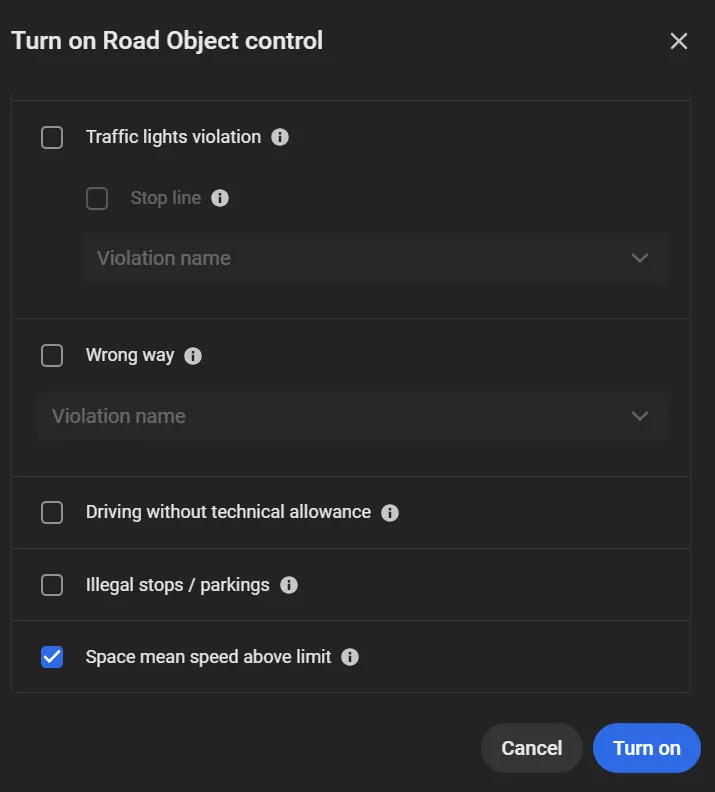
Run Turn on control in the three-dot menu on the road object page to check Crossroads crossing in the window that opens, and then click Turn on.