
Export Traffic Violation Report
A consolidated report about traffic rule violations can be exported according to user-defined criteria, such as the name of a crossroads, vehicle list, etc., and automatically send it to a pre-defined URL in the form of a JSON file. The recipient of the report might be an external application, e.g., for law enforcement, geo-referenced analysis of traffic rule violation statistics or any other.
The information provided in the report is comprehensive and detailed enough for law enforcement to
undertake appropriate legal actions against traffic offenders, including all relevant snapshots.
The output file is an array of JSON descriptors of violation events, each of which has the form:
{
  "id": 24145286341509,
// event ID
  "road_object": {
    "id": 37, // road object ID
    "name": "...",
// road object name
    "address":
{ //road object address
      "country": "...",
      "region": "...",

"county": "...",
      "city": "...",
      "district": "...",

"street": "...",
      "place_info": "32"
    },

"latitude": 42.9492007425645, // road object coordinates
    "longitude": 1.596972286701206
  },

  "name": {
    "id": 1, // violation name ID
    "name": "...", // violation name
  },

  "type": "TRAFFIC_LIGHT_VIOLATION", // violation type
  "snapshots": [
    {
      "type": "THUMBNAIL", /
/ violation screenshot type
      "image": "base64" // violation screenshot in binary

"tag": "crop_initial" // violation screenshot tag
    },
    ........
   ],
  "params":
{
    "object": {
      "color": { // vehicle color and color recognition score

"value": "blue",
        "reliability": 0.9358687
      },
      "car_brand":
{ // car make and recognition score
        "value": "BMW",
        "reliability": 0.9642319
      },

      "object_type": { // vehicle type and recognition score
        "value": "car",

"reliability": 0.9872734
      },
    },
    "plate": {
      "number": "5159ht5", // license plate number

"state": "CA", // country
      "valid": true, // plate validity indicator

"recognition_time": 1743584964732 // recognition time
    },
    "tripwire": {

"pre_frame_timestamp": 6795364578871,
      "frame_timestamp": 1743584964966,

"post_frame_timestamp": 1743584965142
    },
    "reliability": 1
  },
  "video_sources":
[ // observing camera  ID and name
    {
      "id": 2,
      "name": "..."
    },
  ],
}
- On the Settings — Export of traffic violations page ...,
- Enter:
- Set up time windows, which means that only violations will be exported, time-stamped within the selected time windows on the selected days of the week.
- Enter the URL to send the report to.
- Click Save.
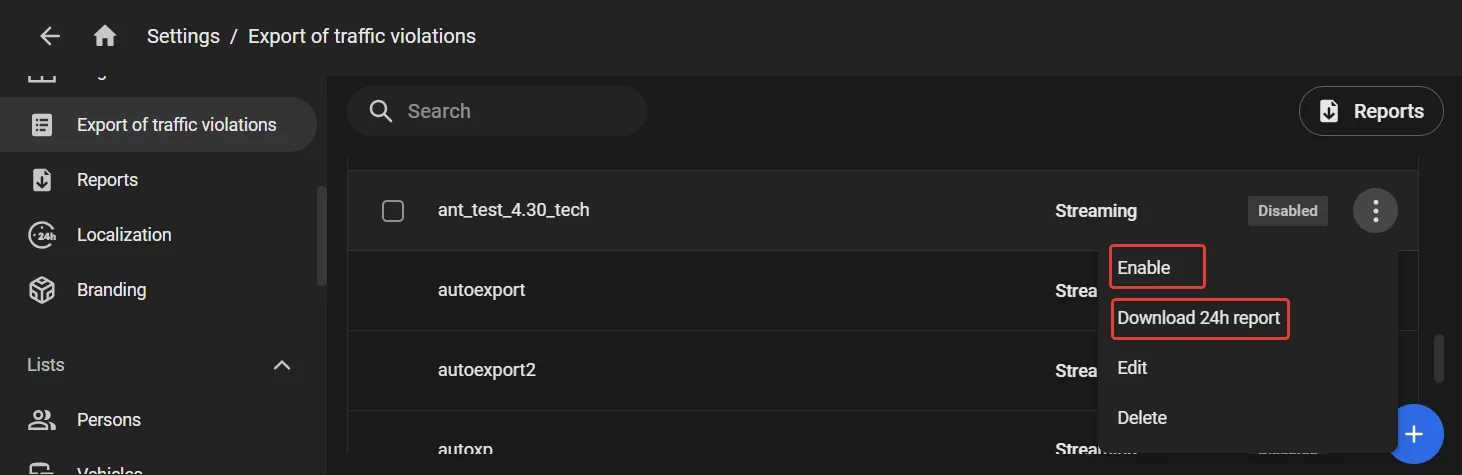
- The newly created task will then appear on the task list on the Settings — Export of traffic violations page. On the three-dot menu, click Enable as shown to run the export.
...click "+" to open the Traffic violation export task form.
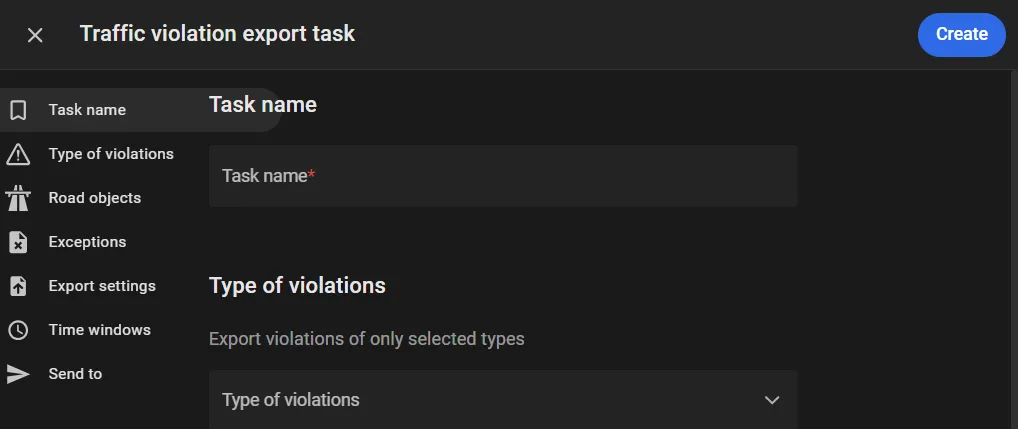
A task is a container for user-defined information relevant to the export, such as what kind of violations to export, violation locations, time stamps and more.
Task name: the name of the task
Filters : violation type, road object, and tags to export.
Exceptions : vehicle list names: violations by vehicles on these lists will not be reported.
Under Export settings, specify the report transmission schedule:
Streaming : export of all detected violations in real time
Daily : export once every 24 hours. More options will then appear.
3.1 Switch on the Set up time windows toggler. This lands on the Days of the week tab, where time windows are set up to apply regularly every week, all year round.
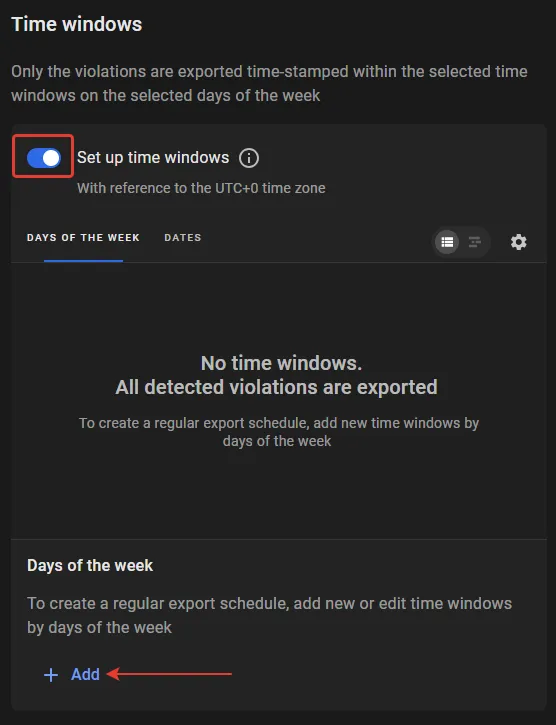
3.2 Click Add to select, e.g., "Monday" on the list.
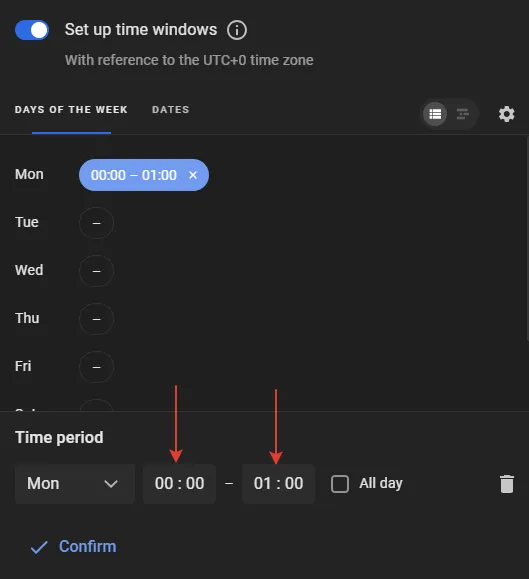
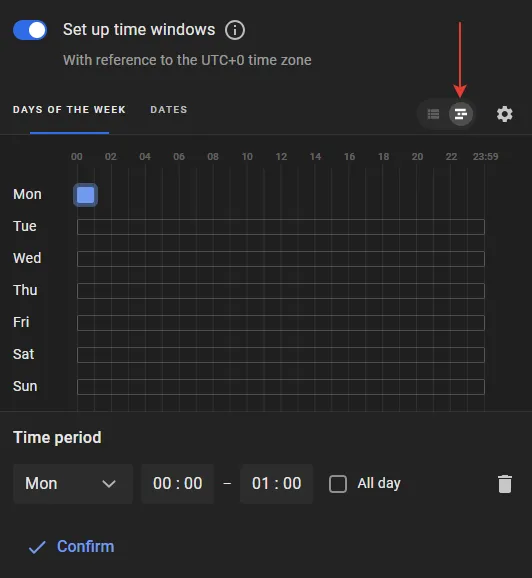
3.3 Edit the time limits of the time window on Monday in the list view (left) or chart view (right) and click Confirm.
3.4 Use the commands in the three-dot menu to do one of the following:
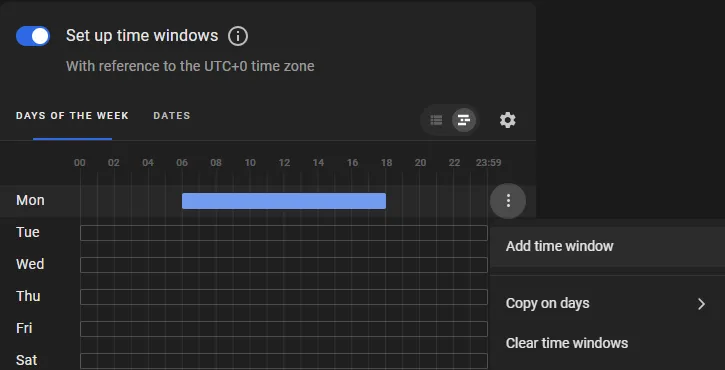
Copy on days - to set up the same time windows on some other days of the week.
Add time window - to add another time window on the same day of the week, which does not overlap with existing windows.
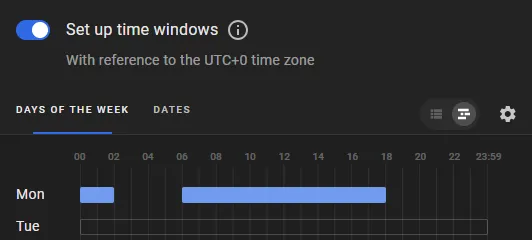
Clear time windows - self-explanatory.
3.5 Repeat the steps above to set up the time windows on other days of the week.
3.6 Go to the Dates tab.
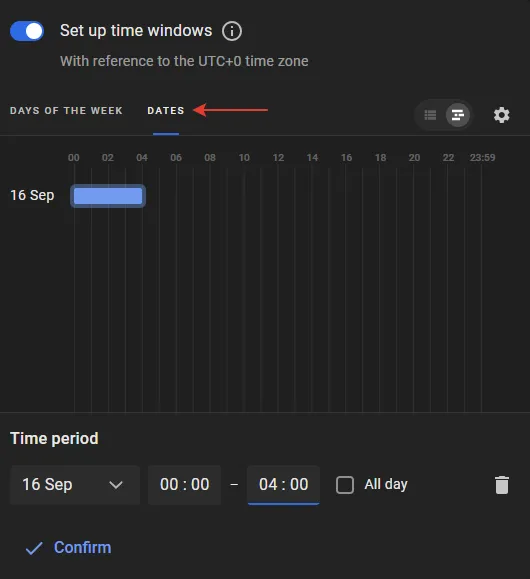
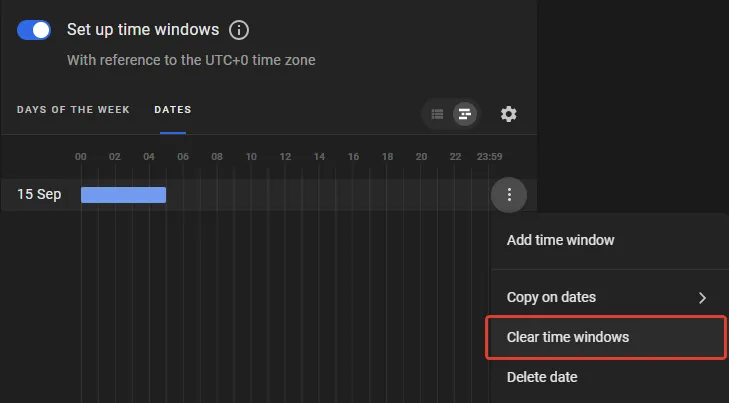
Time windows set up on this tab override those set by days of the week. For instance, the schedule for Mondays is from 6 AM to 6 PM. However, September 15 is a Monday too, and a different schedule may be needed for this particular date (or the export may not be needed on this date at all). Then set it up on the Dates tab.
3.7 Click Add, select a date on this tab and set up time windows by dates in the same way.
Not to run the export on a date at all, click Clear time windows as shown, thus leaving the date blank.
Instant Traffic Violation Reports
If Daily was seleted at step 2 above, 24h countdown begins right after the Enable is clicked. The first report will be ready to download in 24 hours as the diagram below shows in black.
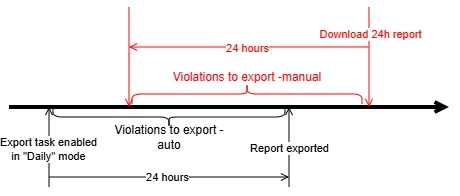
However, a report about traffic violations in the past 24 hours can be exported and downloaded manually at an arbitrary moment in time (red in the diagram). e.g., in the case of an urgent need. To do so, run the Download 24 report as shown - the 24h reports window will shown previous reports ready to download and the current one as "In progress".
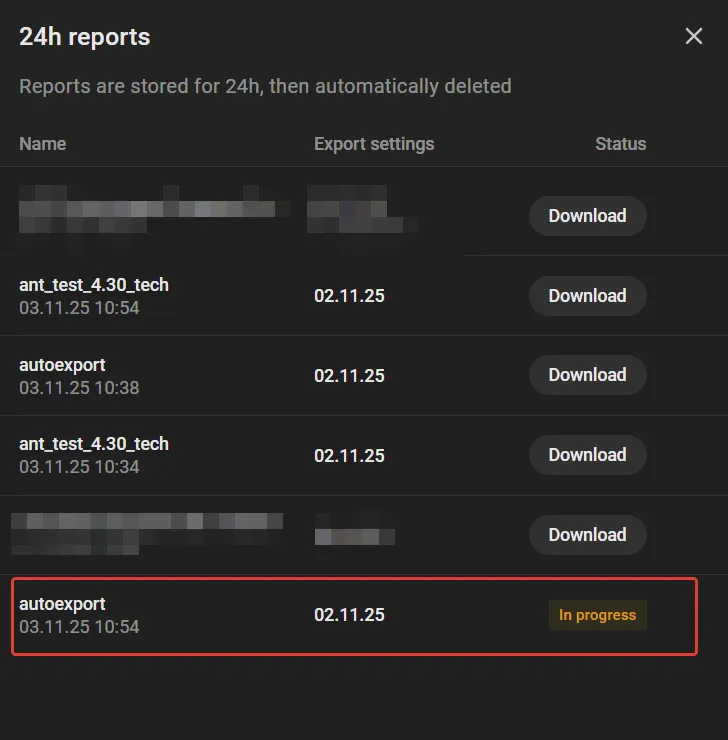
As soon as it is ready to download, click Download to do so.
Delivery Confirmation and Retries
After IREX sends an export file to the recipient URL, it acts on the response code returned by the receiving system:
|
Response
Code |
Meaning
|
What IREX Does
|
|---|---|---|
|
200
|
Report accepted
|
Delivery is complete; the file is not sent again.
|
|
400
|
Report rejected
|
Delivery stops; the file is not resent.
|
|
401
|
Not accepted (auth)
|
IREX retries every 5 minutes for up to 30 minutes, or until it receives 200.
|
|
500
|
Reciever error
|
IREX retries every 5 minutes for up to 30 minutes, or until it receives 200.
|
This ensures accepted and explicitly rejected violations are not sent repeatedly, while transient failures (401, 500) are retried automatically within the 30-minute window.