TamperTrack
TamperTrack alarms on incidents that prevent the camera from normal performance, specifically:
- Signal loss
- Low frame rate
- High bitrate
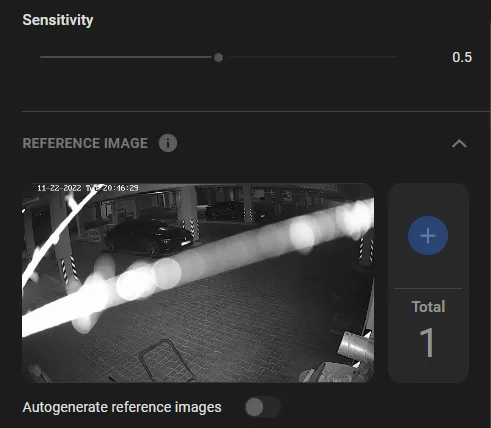
- Camera shift (relative to the reference image)
- Scene too bright
- Scene too dark
- Defocus
Set Up TamperTrack
- Checkmark the alarm types to generate, and assign a priority rating to each.
- Drag the Sensitivity sliders for each alarm type to adjust. Try different values to experimentally find the right balance between false positives and false negatives.
- At low lighting, there may be too many "Camera shifted" alarms. To prevent it from happening, switch on the Autogenerate reference image option. This will make the program update the reference image whenever the camera is shifted, thereby preventing new false "Camera shifted" alarms. As soon as a steady condition is reached with an acceptable "Camera shifted" false alarm rate, switch the option off.
Signal loss occurs when the video stream timeout is exceeded.
A low frame rate indicates that something is wrong with the camera configuration or that the bandwidth is insufficient.
Enter a minimum FPS limit.
High bitrate, which means the average bitrate value has been spontaneously exceeded by over 20%.
Camera shifted, which might or might not have been intentional.
Scene screened, which might be a sign of planned wrongdoing. Enter a Screened area-to-ROI limit.
Scene too bright, e.g., by an unwanted reflection or sensor malfunction.
Image blurred, e.g., because of wet or muddy spots on the lens, heavy fog, etc.
Camera defocus, e.g., due to autofocus error.