Set Up Traffic Lights Violations
Definitions
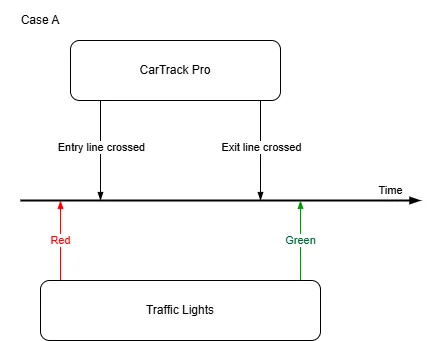
A “Traffic light violation” occurs if a car:
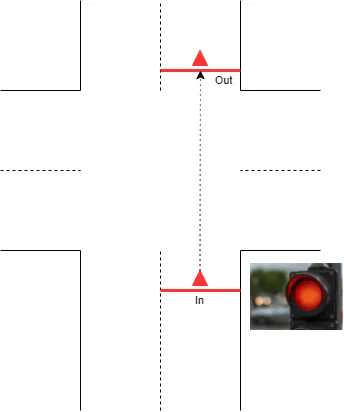
- Enters a crossroads by crossing the entry line (e.g., the “In” line below) after the red light gets switched on,
AND
- Leaves the crossroads by crossing the exit line (e.g., the “Out” line below) before the red light goes off.
|
|
|---|
The platform records a violation only if the “Do not go” light selected in the violation rule was on when the vehicle crossed the entry line and shortly before that.
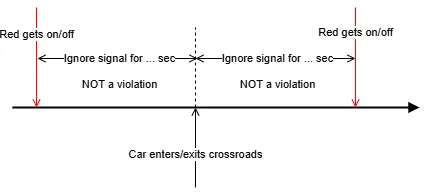
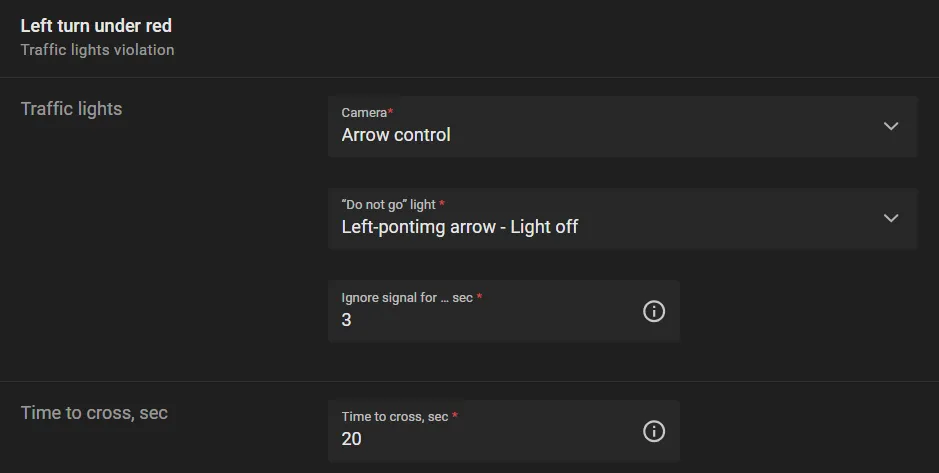
However, a minor mismatch between entry/exit timestamps vs red light goes on/off is considered permissible. It must be less than Ignore signal for … sec parameter value. This is to avoid too many minor violation events.
If the stop line control is also enabled at the crossroads, traffic light violations can occur in situations like this:
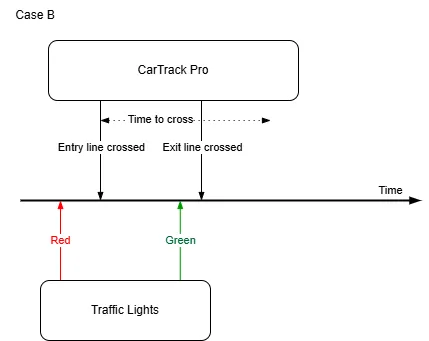
 The timestamp of the event when the car crosses the line is detected, considering
the value of
the Focal point.
The timestamp of the event when the car crosses the line is detected, considering
the value of
the Focal point.
The entry-to-exit time span should not exceed 180 seconds; otherwise, it is not considered a violation.
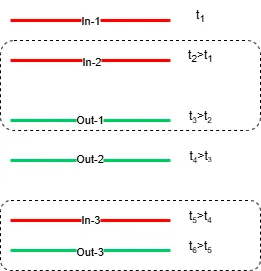
A crossroads may be
complicated enough to have multiple entry and exit lines. A car, in its turn, may make a tricky maneuver at the crossroads, crossing many of them. To avoid confusion in a situation like this, the program automatically builds forbidden entry-exit pairs in a way illustrated by the diagram below. i.e. a pair is built from the lines crossed strictly in turn, with account of the entry-to-exit direction.
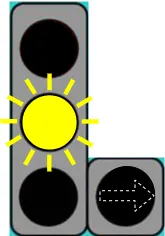
An arrow in an "Off" condition shall not be considered a "Do not go" signal if the yellow circular light is continuously flashing, thus signalling that the crossroads is out of control.
Workflow to Set Up Traffic Lights Violations
- Build a road object.
- Bind cameras to it.
- Name the violation
- Build the entry and exit lines
- Set up the “Do not go” signal.
- Combine the lines and signal into a rule.
- Turn on traffic lights control.
- Review the result.
Bind Cameras
Detecting a traffic lights violation requires cameras to monitor the entry and exit lines, as well as the traffic lights themselves. Entry and exit cameras must have CarTrack Pro enabled, and the camera monitoring the traffic lights must have the “Traffic lights” module. However, these modules can be combined on a single camera.
- On the Road objects page in the settings, click as shown ...
- Set the camera filter to All to run Bind to road object on the camera (or one of the cameras) intended to monitor the crossroads. The window of the same name opens.
- Check the functions assigned to the camera: monitoring entry, exit, traffic lights, or overview under the Camera type.
- Enter the camera label to be shown wherever relevant to the traffic lights violation rules.
- Select a color for the camera icon on the crossroads scheme.
- Click Bind.
- Drag and drop the camera icon on the road object scheme to place it at its actual location.
- Redraw the camera’s field of view on the scheme to make it realistic.
- Repeat steps 3 - 8 until all Entry, Exit, Traffic lights, and Overview functions are assigned to one or multiple cameras.
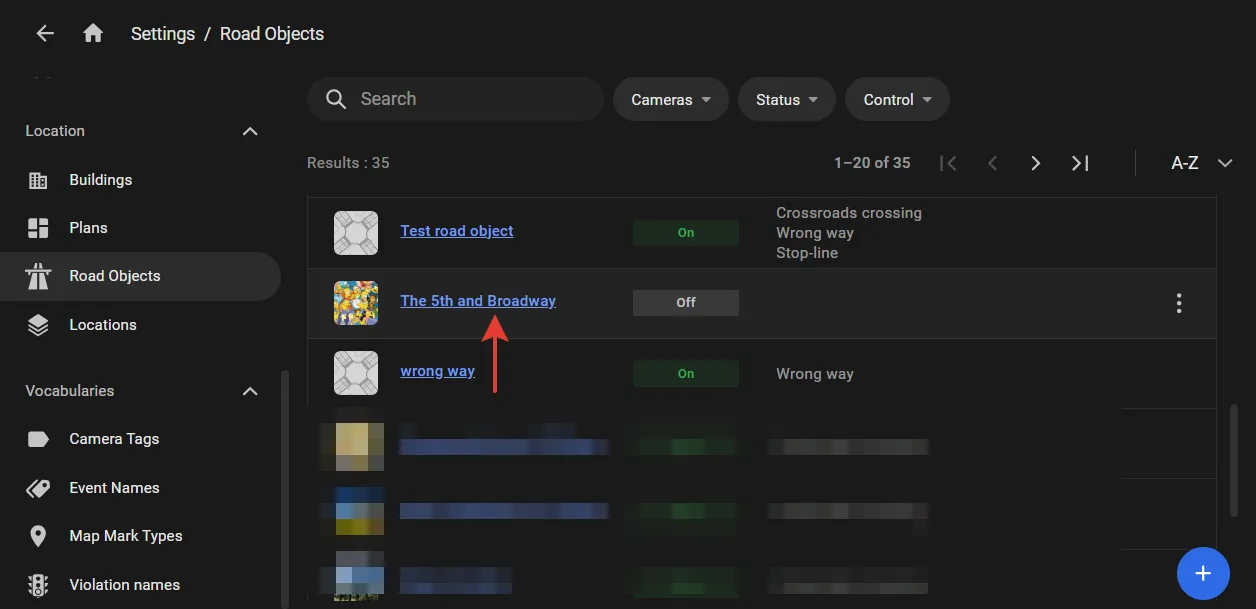
... to open the road object (crossroads) screen.
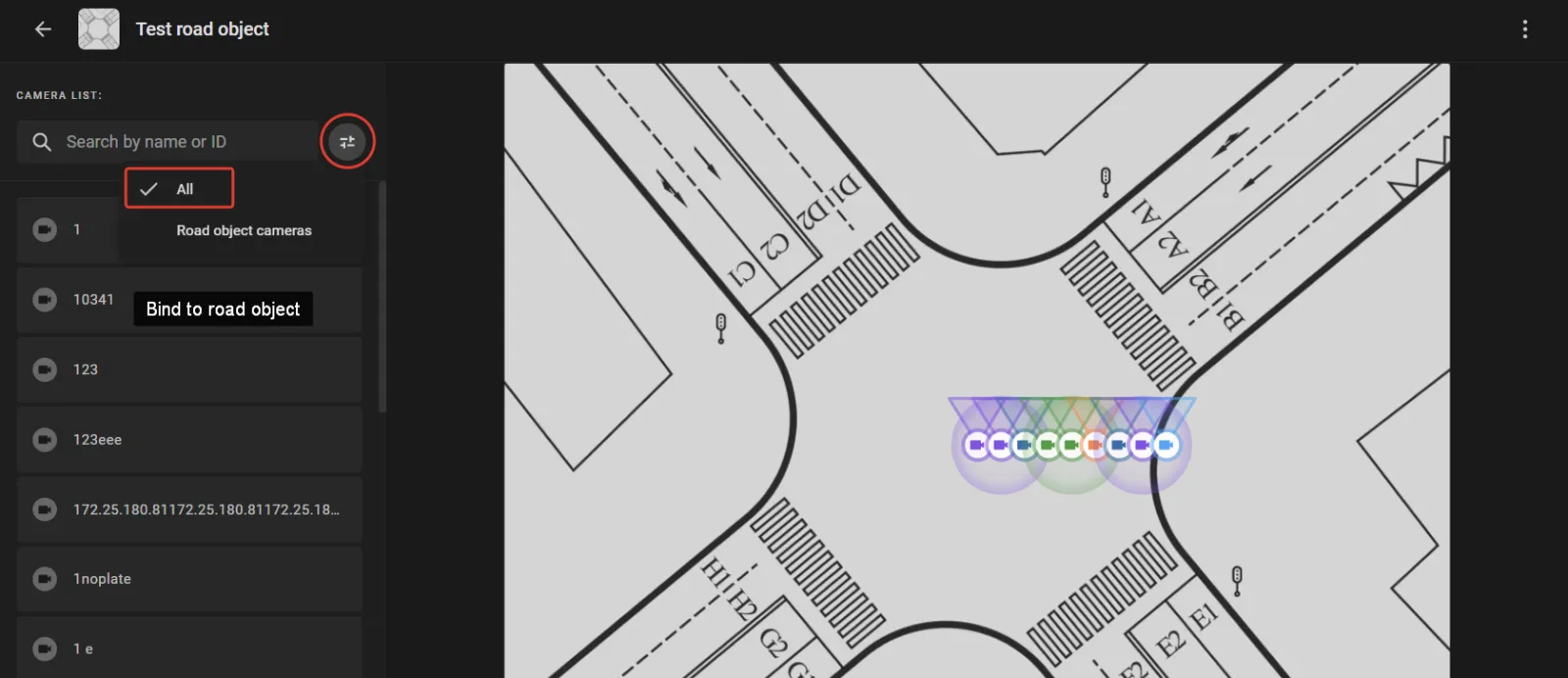
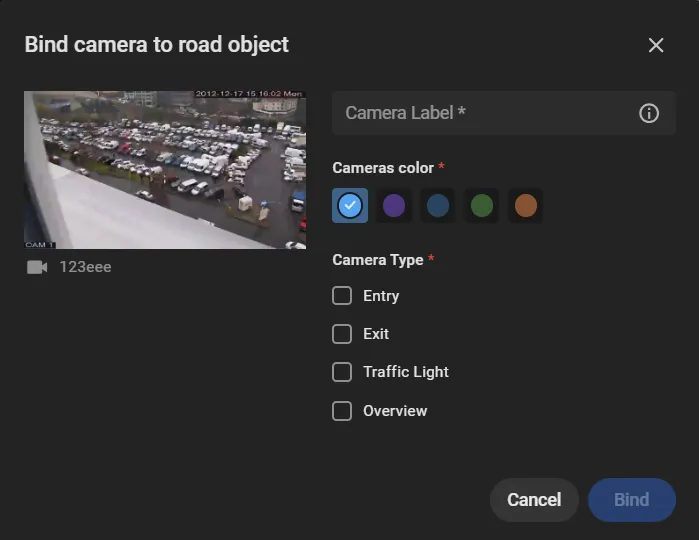
Entry and exit cameras must have CarTrack Pro enabled, and the camera monitoring the traffic lights must have the “Traffic lights” module. These modules can also be combined on the same camera.
Choose a self-explanatory label (e.g., “Lane control” for an entry and exit camera, or “Arrow control” for the camera observing the arrow at an arrow-controlled crossroads), according to the camera’s function. See step 3.
Name the Violation
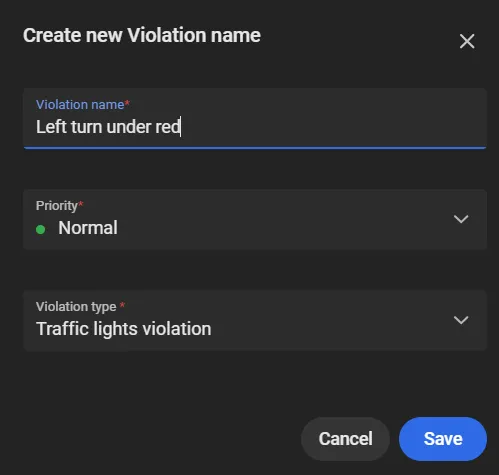
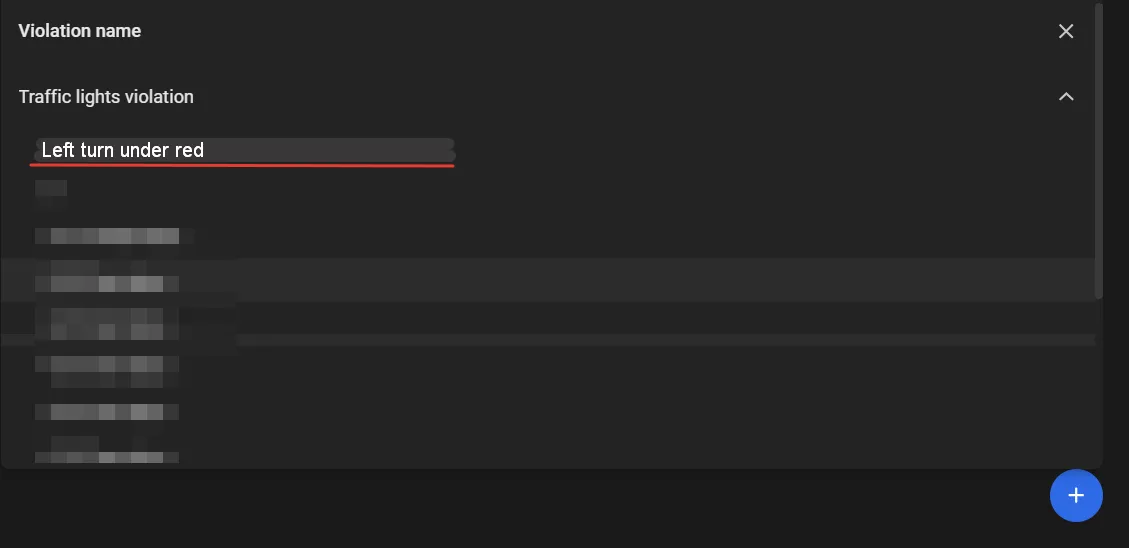
On the Violation name page in the settings, click the “+” to open a window, then:
- Set Violation type = "Traffic lights violation”
- Set an event priority value.
- Type a descriptive name for the planned violation at this particular crossroads, e.g., “Left turn under red”.
The name will appear on the rule name list when it comes to formulating the rule.
Build the Entry and Exit Lanes
In the CarTrack Pro settings for the camera monitoring entry or exit to and from the road object, build the entry and exit lanes. Give these lanes clear names, e.g. “In” or “Out,” to make it easier to combine them with the “Do not go” signal into a rule later.
Set Up Traffic Lights Control
On the camera designated to monitor the traffic lights, set up the circular lights and arrows that control traffic across the road object. Give the monitored lights and arrows self-explanatory names, e.g., “Left-pointing arrow.”
Formulate the Rule
Now combine the lanes and traffic lights into the rule.
- Run the Violation rules in the three-dot menu on the road object page.
- Under Cameras click the camera label meant to monitor the entry to the road object (arrow 1 in the picture below).
-
Under Traffic objects click the entry lane (e.g. "In", see arrow 2), which is one of the Entry lanes build here.
- Click "+" to select the planned traffic light violation name (e.g. "Left turn under red") under Traffic lights violations.
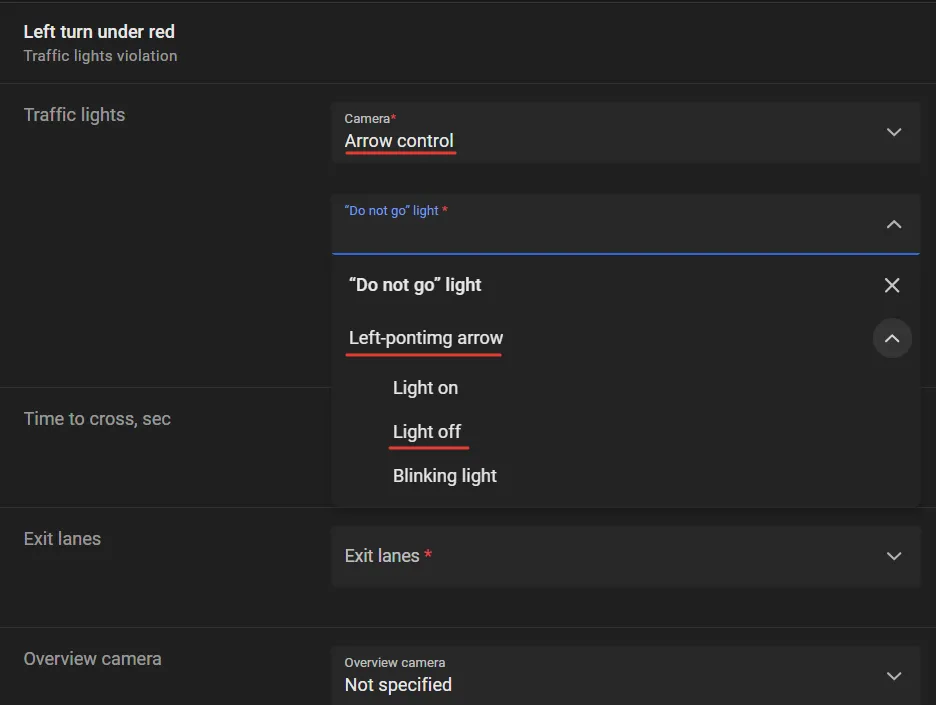
- On the next screen in the Traffic lights text box select the label of the camera watching the traffic lights, e.g., "Arrow control".
- Under “Do not go” light find the name of the signal that controls traffic across the crossroads, e.g., "Left-pointing arrow". The platform records a violation only if that “Do not go” light was on when the vehicle crossed the entry line and shortly before that.
- Under that name, click the condition of the light that consitutes a violation when dring from the entry lane (e.g. "In") to the exit one. For instance it is "Light off" for an arrow.
- Define numerically the Time to cross, sec and Ignore signal for … sec parameters.
- In the Exit lane box find the label of the exit camera, e.g. "Lane control".
- Under that name click the exit lane name, e.g. "Out".
- Click Save.
.webp)
Turn On Traffic Lights Violations Control
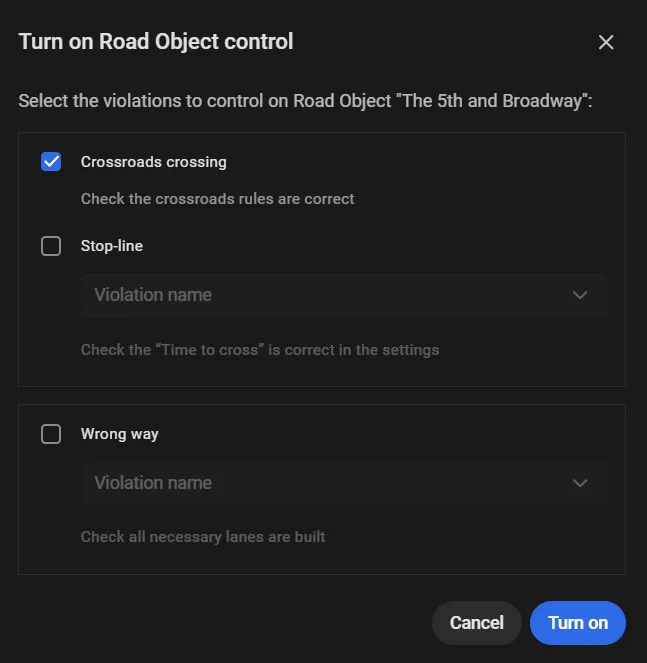
Run Turn on control in the three-dot menu on the road object page to check Crossroads crossing in the window that opens, and then click Turn on.