FireTrack
Use the FireTrack module to receive immediate alerts on smoke and fire hazards in both indoor and outdoor environments.
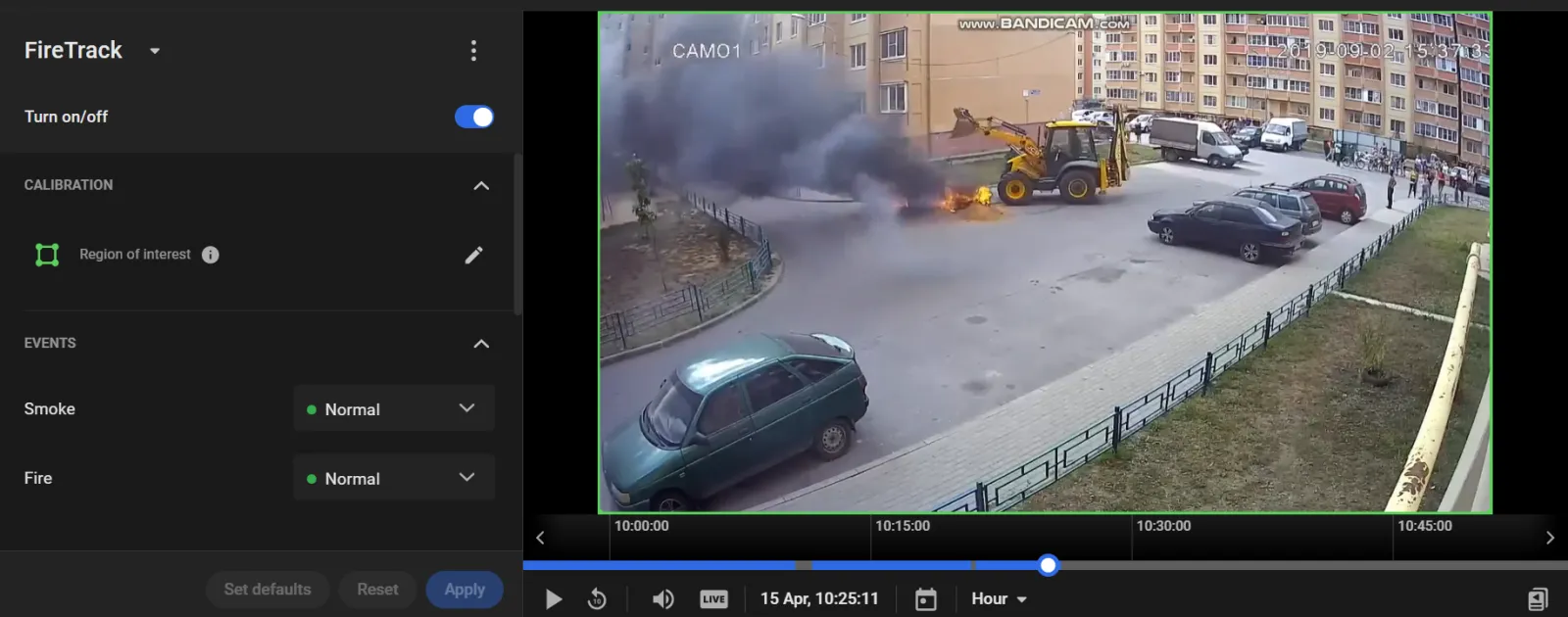
Meet FireTrack
Computational Capacity
The module has an average computational load.
Camera Mount Requirements
For optimal performance, ensure that cameras meet the following requirements:
- Mount type: fixed cameras only (PTZ, mobile devices, and drones are not supported).
- Resolution: from 1280×720 (HD) up to 2592×1944 (QHD).
- Tilt: +15° to +75°.
- Pan: −75° to +75°.
- Roll: −5° to +5°.
- Image quality in the region of interest: at least 25 pixels per meter.
- Minimum detectable object size: 64 px (8×8).
- Minimum smoke coverage: 10% of the region of interest.
How to Receive Smoke and Fire Alerts
Smoke and fire alerts require immediate response from emergency services.
- Ensure that cameras monitoring fire-prone areas meet the system requirements.
- Enable the FireTrack module and configure detection for smoke and/or fire.
- Configure an alarm monitor with Analytics modules > FireTrack > Smoke/Fire enabled.
Set Up Smoke Detection
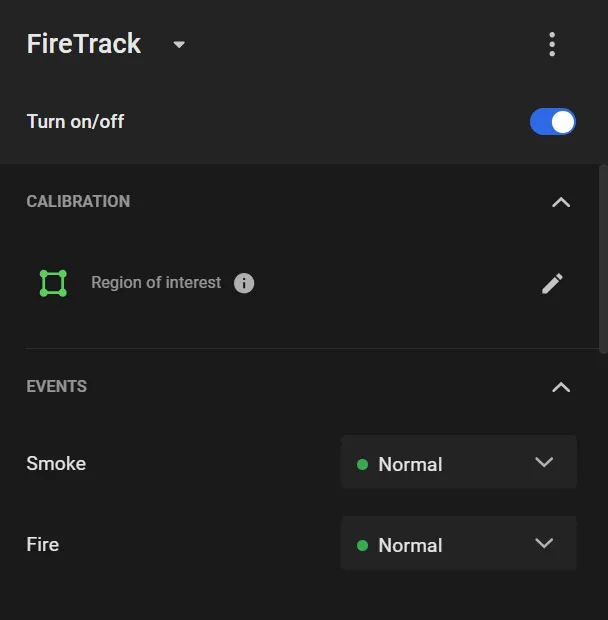
Configure FireTrack parameters under CALIBRATION and ADDITIONAL SETTINGS.
- Region of interest: defines the area of the frame to analyze (highlighted in green). By default, the full frame is used.
To move a vertex, drag it with the cursor.
To delete a vertex, double-click it.
To add a vertex, double-click on an edge.
To move the entire region, drag it from inside the selection.
- Assign priority levels for Smoke and Fire events.
- Sensitivity to fire (0–1): lower values require a larger fire area to trigger a Fire event.
- Sensitivity to smoke (0–1): lower values require higher smoke density to trigger a Smoke event.
- Smoked for longer than … sec: defines how long smoke must persist to be detected.
- On fire for longer than … sec: defines how long a fire must persist before triggering an alert, helping reduce false positives from short-lived events.
When enabled, FireTrack automatically generates the Smoke and Fire events.